 Emplyr
Profiles, people & access · Roles, permissions and navigation
How to assign or change a member’s profile roles
Change the permissions a member receives in the selected profile.
On this page
Before you start
- You need permission to view/edit members and their role assignments. Create the required profile role before starting.
Follow these steps
Screenshots use fictional training data. Names, dates and amounts are examples. Select an image to view it at full size.
- Select the intended profile in Context and open Users.
- Find the member by name and login, then select Edit. Confirm the person and active profile before changing access.
- In Roles, select the appropriate existing profile role assignments. Review the role’s permissions if you are unsure what it grants.
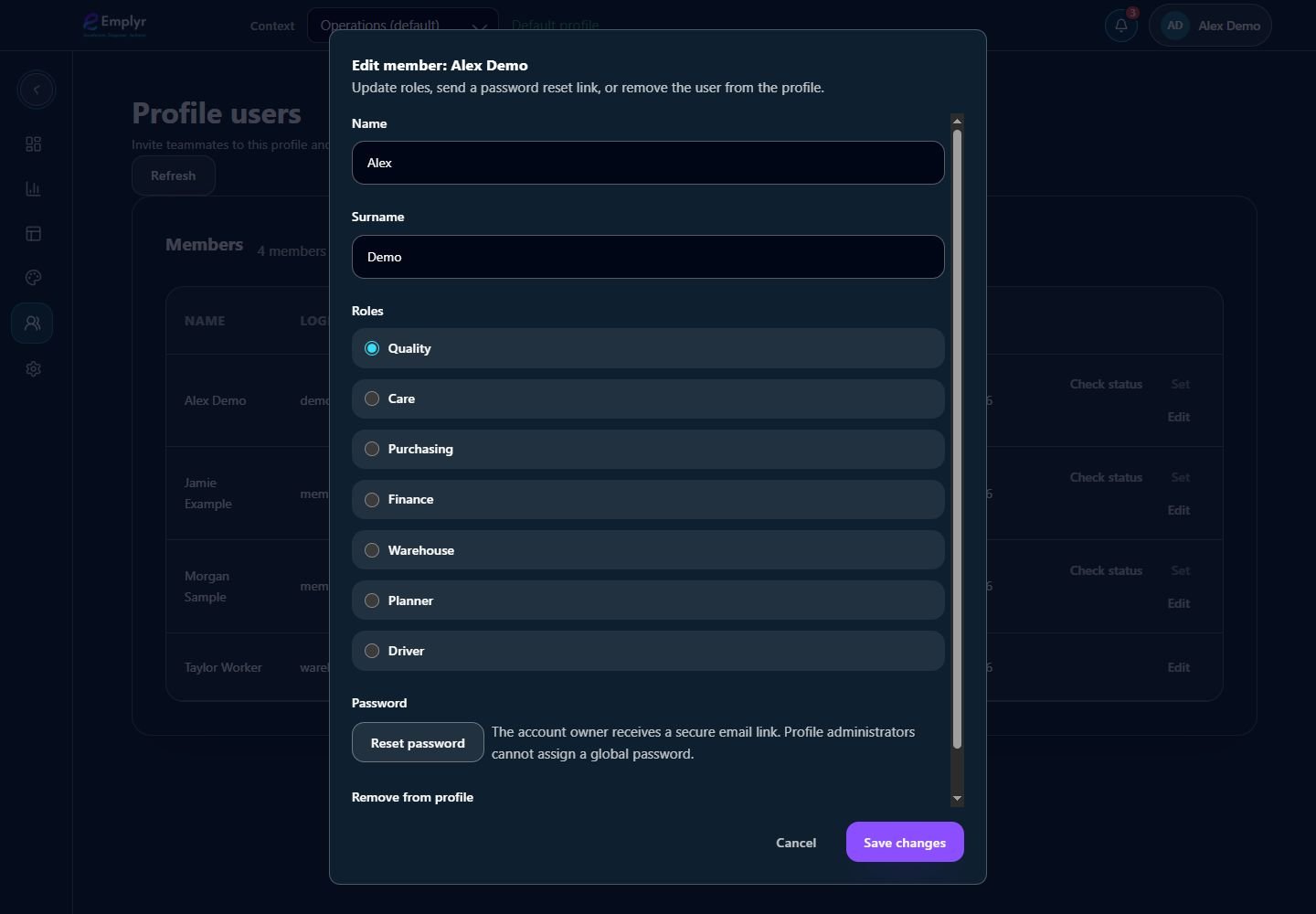
Choose the member’s intended roles, then save the change. The reset action sends an account reset link. - Save the change and wait for confirmation. Ask the member to reopen the affected page or refresh its context.
- If the member still lacks one report or process, check that resource’s access settings. Role features, report/process grants and profile module activation solve different parts of access.
What you should see
The member’s roles are changed for this profile. Their account password and roles in other profiles are not set by this action.
If something goes wrong
Role options are disabled
You may have member-edit permission without role-edit permission. Ask an instance admin to grant the intended management access.
You cannot edit an Admin member
Only instance admins can manage Admin memberships.
The user is a worker
Keep the worker in its managing profile and use roles that do not grant Fabric tenant access.