 Emplyr
Using Emplyr · First session and finding your way
Your first session in Emplyr
Set up your account, select the right place to work, and complete your first task.
On this page
Before you start
- Have the Emplyr web address supplied by your organisation. If you have an invitation, use its link. A worker login and temporary code come directly from your profile administrator.
Setting up an organisation for the first time?
This guide starts after you have an account or invitation. Purchasers and new instance administrators should start with signup, then return here when the first profile is ready.
Follow these steps
Screenshots use fictional training data. Names, dates and amounts are examples. Select an image to view it at full size.
- Open your invitation and choose a password, or sign in using the account details you already have. Use the worker-login guide if you were given a username instead of an email address.
- Check the instance shown in the account menu in the top-right corner. An instance is your organisation’s Emplyr environment. If you belong to several, choose the instance you were asked to use.
- In the top bar, use Context to choose your client or department profile. Confirm its name before opening reports or entering data. Admin / Global is for instance administration, not everyday profile work.
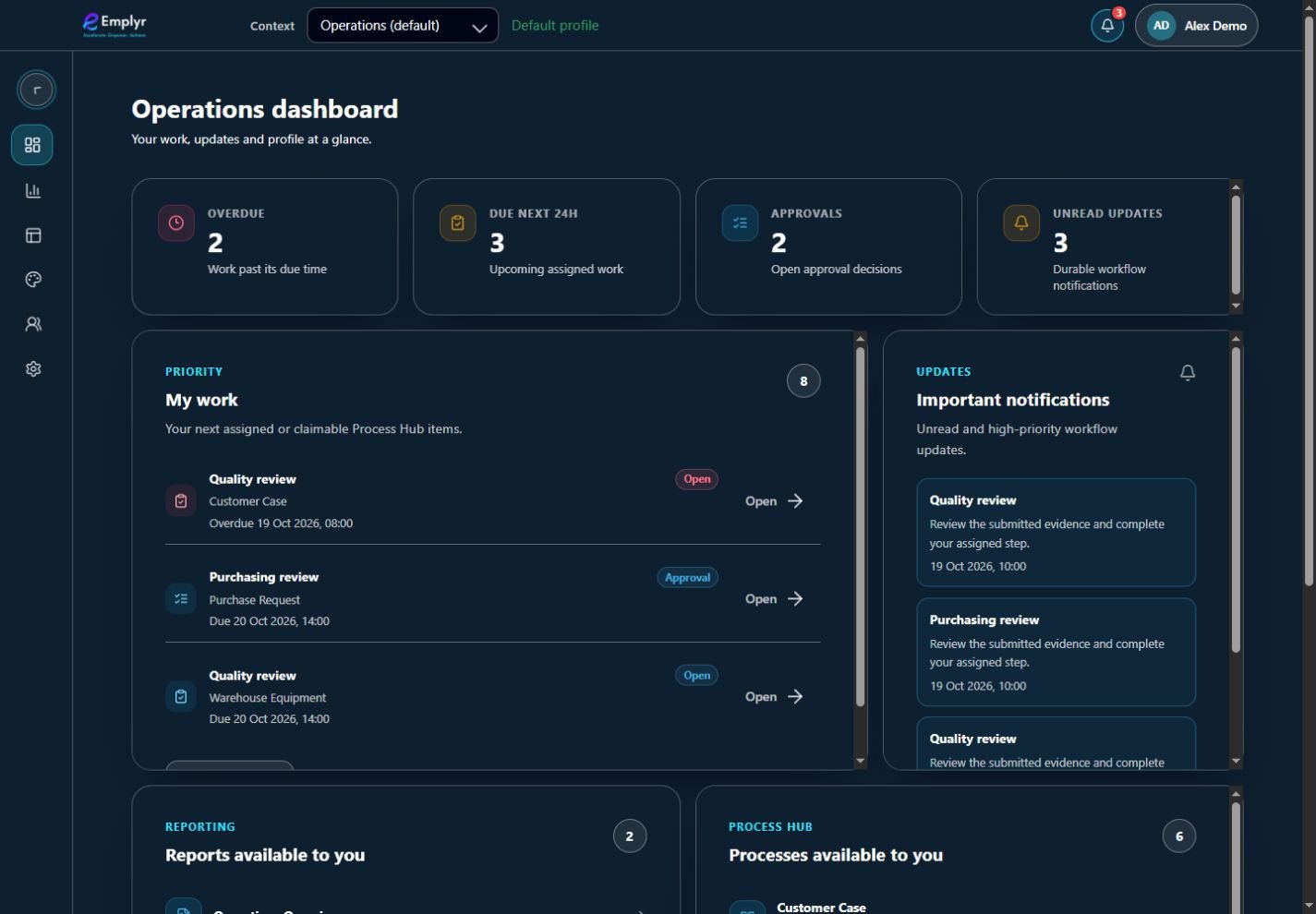
The active profile appears in Context. Its dashboard and menu show the work and modules available to you. - Start at Dashboard or your assigned landing page. Open Reports to read a report, or Process Hub → My work to find assigned work. Your organisation can arrange these links differently.
- Open one assigned item and read its instructions. Save a draft if you need to return later. Submit only when it is complete; a saved draft and a submitted record have different effects.
- Open the notification bell to check requests and updates. When you finish on a shared computer, open the account menu and choose Logout.

Open the related work from a notification. Marking a message read does not complete the work or decide an approval.
What you should see
You know which instance and profile you are using and can find your reports, work and account menu.
If something goes wrong
No profiles or work appear
Ask your administrator which profile and role you should have. An empty My work list can also mean there is no current assignment; clear filters before concluding this.
You are asked to finish setup
Instance administrators complete the setup screens. Members should ask their administrator to finish setup rather than create another account.