 Emplyr
Using Emplyr · First session and finding your way
Overview of the Emplyr app
Understand your account, organisation environment, profiles and access.
On this page
Before you start
- No setup changes are needed to read this guide.
The terms you will see
On smaller screens, scroll the table sideways to see all columns.
| Term | Meaning |
|---|---|
| Account | Your login identity and password. |
| Instance | An organisation environment containing memberships, profiles and instance settings. |
| Profile | The client or department space selected in Context. |
| Module | A capability enabled for the profile; activation does not grant all permissions. |
| Role | A named set of permissions assigned for a profile. Its name is chosen by your organisation. |
| Fabric workspace | The Microsoft Fabric workspace bound to a profile. Several profiles may share it. |
| Process | A configured business activity with records, fields and rules. |
| Admin Portal | Account membership selection and operational views restricted to your admin memberships. |
Follow these steps
Screenshots use fictional training data. Names, dates and amounts are examples. Select an image to view it at full size.
- Identify your account: an email account uses one password across its Emplyr memberships. A worker account is a restricted login managed for one profile.
- Identify your instance in the account menu. Your instance membership is either Admin or Member; you can have different memberships in different instances.
- Check the Context selector. A profile is a client or department space within the selected instance. Reports, process records, roles and profile settings use this context.
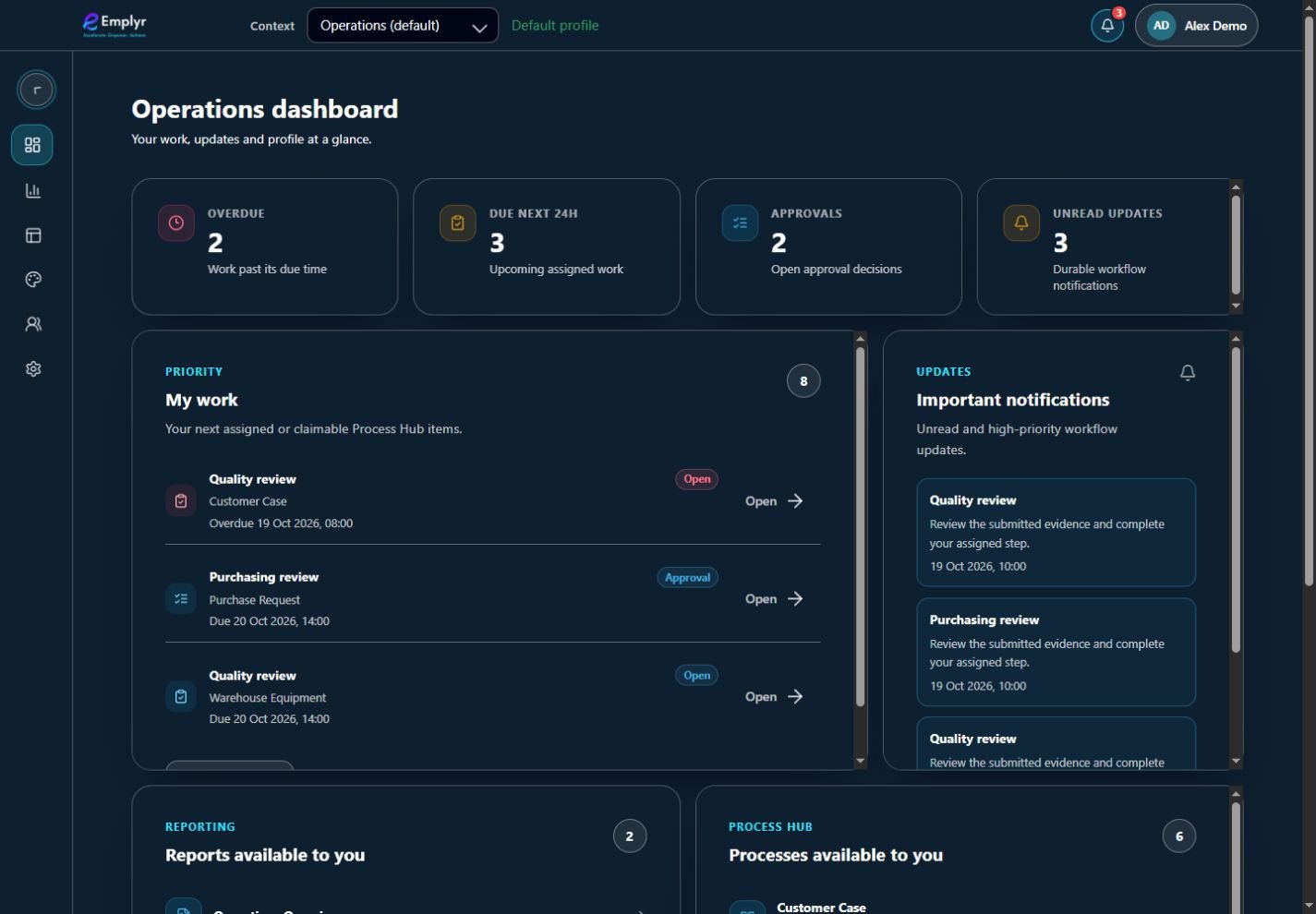
The active profile appears in Context. Its dashboard and menu show the work and modules available to you. - Choose the feature you need. Reporting, Whitelabeling, Fabric Access and Process Hub can be enabled per profile. Users and Settings appear according to role permissions.
- If an option is missing, use the visibility checklist. Module activation, role permissions, access to a specific report/process, and subscription or workspace eligibility can all matter.
What you should see
You can describe where you work and tell your administrator which instance, profile and feature need attention.
If something goes wrong
“I can see the workspace, so why can’t I see the report?”
Fabric access and Emplyr report visibility are separate. Your administrator must grant the report in the selected profile.
Two profiles show the same Fabric workspace
This is allowed. Emplyr profile data and permissions remain separate, but the shared Fabric workspace itself is not an isolation boundary between those profiles.