 Emplyr
Process Hub · Workflows and approvals
Configure submitted-record approval stages
Send a submitted record through a single or sequential review with explicit approvers and outcomes.
On this page
Before you start
- Have Manage automations and the necessary publication authority. Deploy the process fields first. Decide whether this is a submitted-record approval or a lifecycle stage presented in Approvals.
How outcomes work
On smaller screens, scroll the table sideways to see all columns.
| Setting | How to use it |
|---|---|
| Approve | Advance to the next stage or complete the final approval and apply completion updates. |
| Reject | Close the approval with a rejected outcome. |
| Request changes | Return the record to draft work for the submitter with the required explanation. |
| Lifecycle approval | A lifecycle-created work item shown in Approvals; configure its stage handoff in the lifecycle builder. |
Follow these steps
Screenshots use fictional training data. Names, dates and amounts are examples. Select an image to view it at full size.
- Open Settings → Process Hub → Workflows → Approvals. Create or edit the configuration for the intended deployed process.
- Enter the Approval title and Instructions. Add stages in their execution order; give each a Stage name and choose Specific user or Profile role as Approver type.
- Select the actual profile user/role and Due after duration. Decide whether to skip a stage when the submitter is also the approver; test this branch explicitly.
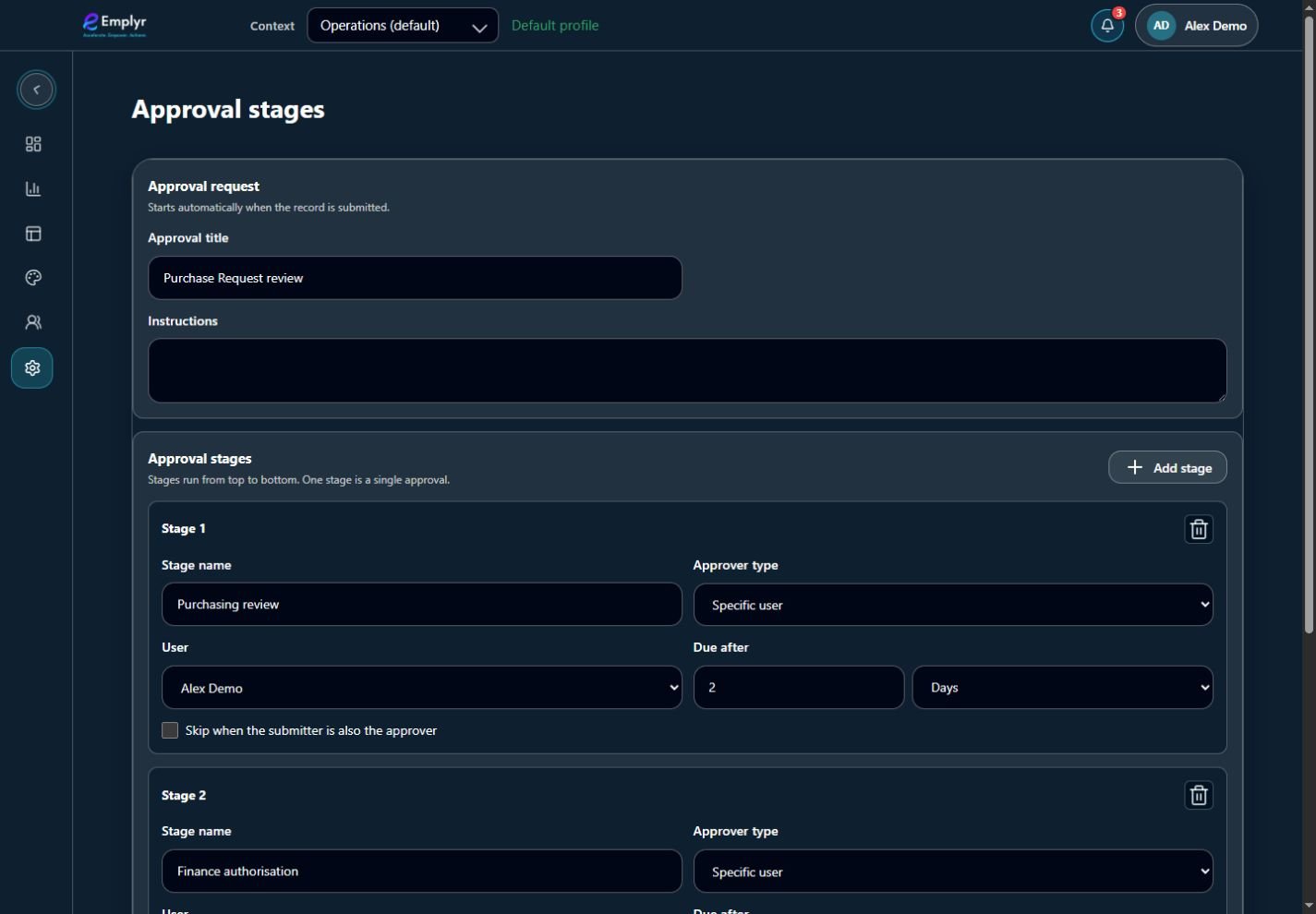
Configure each approver, due rule and stage in order. Review the complete chain before publishing the automation release. - If review evidence is needed, add Approver inputs. Set label, type, compatible writable Write to field target and Required as appropriate. Available input types include Text, Number, Date, DateTime and Yes/No.
- Set any Completion updates that should be applied only after final approval. Review the effect on downstream rules and avoid targeting protected/incompatible fields.
- Save, validate and include the configuration in the reviewed automation release. Submit a fresh training record and have each approver act online in order.
- Test Approve, Reject and Request changes separately. Confirm who receives the record after each outcome and how the submitter can correct a draft returned for changes.
Example: purchase authorisation
Stage 1: Purchasing checks the supplier and quantities. Stage 2: Finance reviews the cost. Use a required review note written to a compatible Text field if evidence is needed. Test a returned draft with the submitter before relying on a repeated approval loop.
What you should see
Submission creates the intended approval work; sequential approval advances one stage at a time and the final outcome is traceable.
If something goes wrong
The process has two approval items for one review
Check whether both lifecycle approval work and a submitted-record approval policy were configured for the same task. Choose the intended design.
The approval cannot be completed offline
Approval actions require an online connection. An offline record submission may queue, but approval decisions are not queued in the same way.
You need parallel/quorum approval or automatic delegation
Those are not supported configuration paths in the current guided approval flow. Design a supported single/sequential review and have the process owner agree it.