 Emplyr
Using Emplyr · Sign in, invitations and passwords
How to accept an invitation
Join your assigned instance/profile using your own account.
On this page
Before you start
- Check the sender and expected organisation before opening an invitation. Use only an invitation intended for your email address.
Follow these steps
Screenshots use fictional training data. Names, dates and amounts are examples. Select an image to view it at full size.
- Read the invitation to identify the organisation and Emplyr address. If it asks you to set a password, follow the secure setup link and choose your own password.
- If you already have an Emplyr account for that email, sign in with your existing password. A new membership does not create a second password.
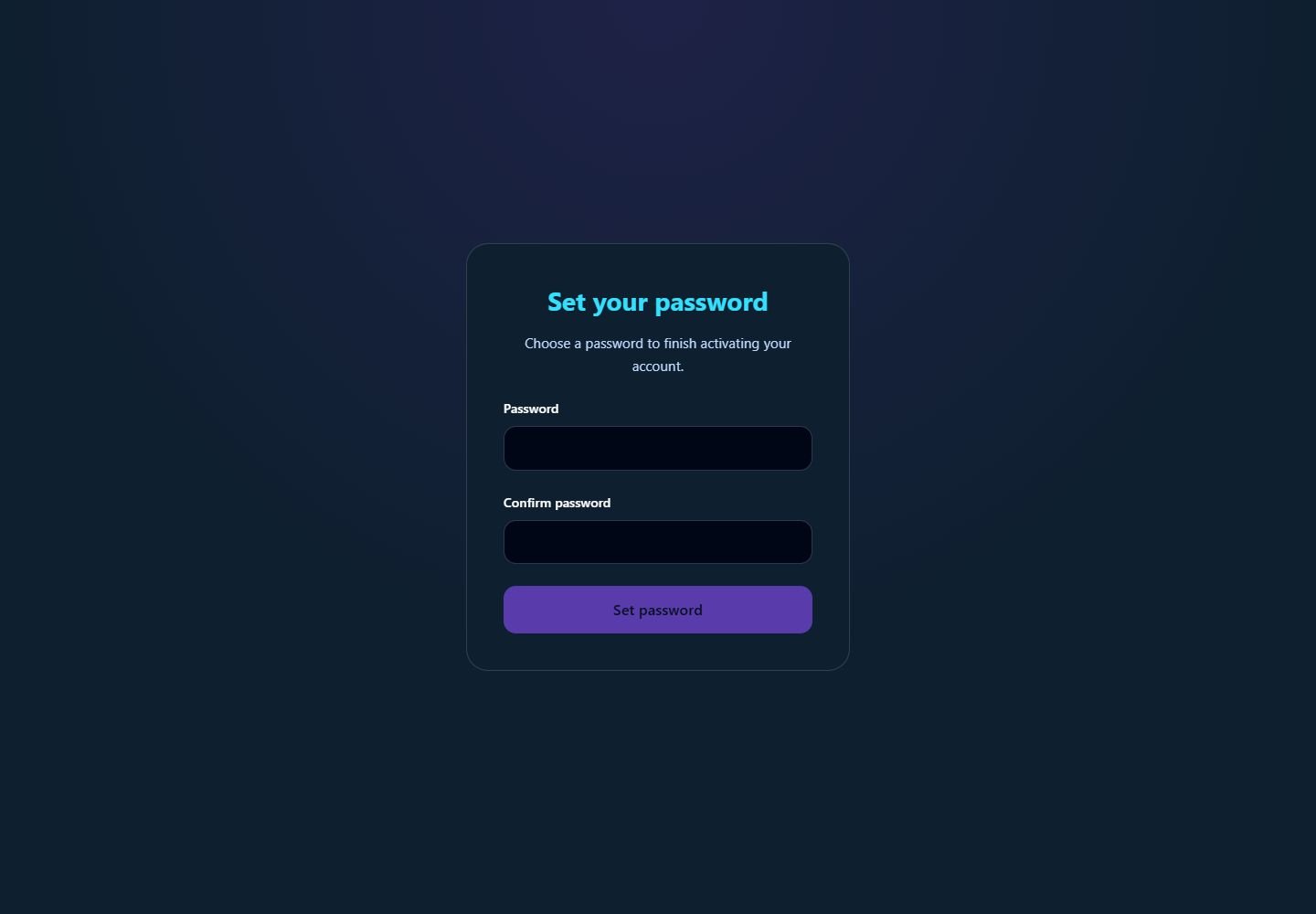
Enter and confirm your own password when the secure account setup or reset flow opens this screen. - Select the invited instance if you belong to more than one. Open Context and choose the profile named by your administrator.
- Open the feature you were invited to use. If your role allows Fabric access and a separate Microsoft tenant invitation was sent, complete that Microsoft invitation with the intended Microsoft account as well.
- Tell your administrator if the expected profile or report/process is absent. Include the email address used, instance/profile name and exact message; do not forward setup links or passwords.
What you should see
Your existing or newly activated account has the profile access assigned by the invitation.
If something goes wrong
The profile is not listed
The invitation may have added an instance membership without the required profile role. Ask the inviter to check the role assignment.
You received an Entra/Microsoft invitation but cannot log in to Emplyr
Microsoft tenant access and the Emplyr account are separate. Ask for the Emplyr account/profile invitation or use Forgot password? if the account already exists.