 Emplyr
Using Emplyr · First session and finding your way
How to select the correct active profile
Switch to the client or department you intend to work in.
On this page
Before you start
- Sign in and check the instance in the account menu. You must have access to the target profile.
Follow these steps
Screenshots use fictional training data. Names, dates and amounts are examples. Select an image to view it at full size.
- Finish or save the record you are editing before changing context.
- Open the Context selector in the top bar and choose the client or department profile you need.
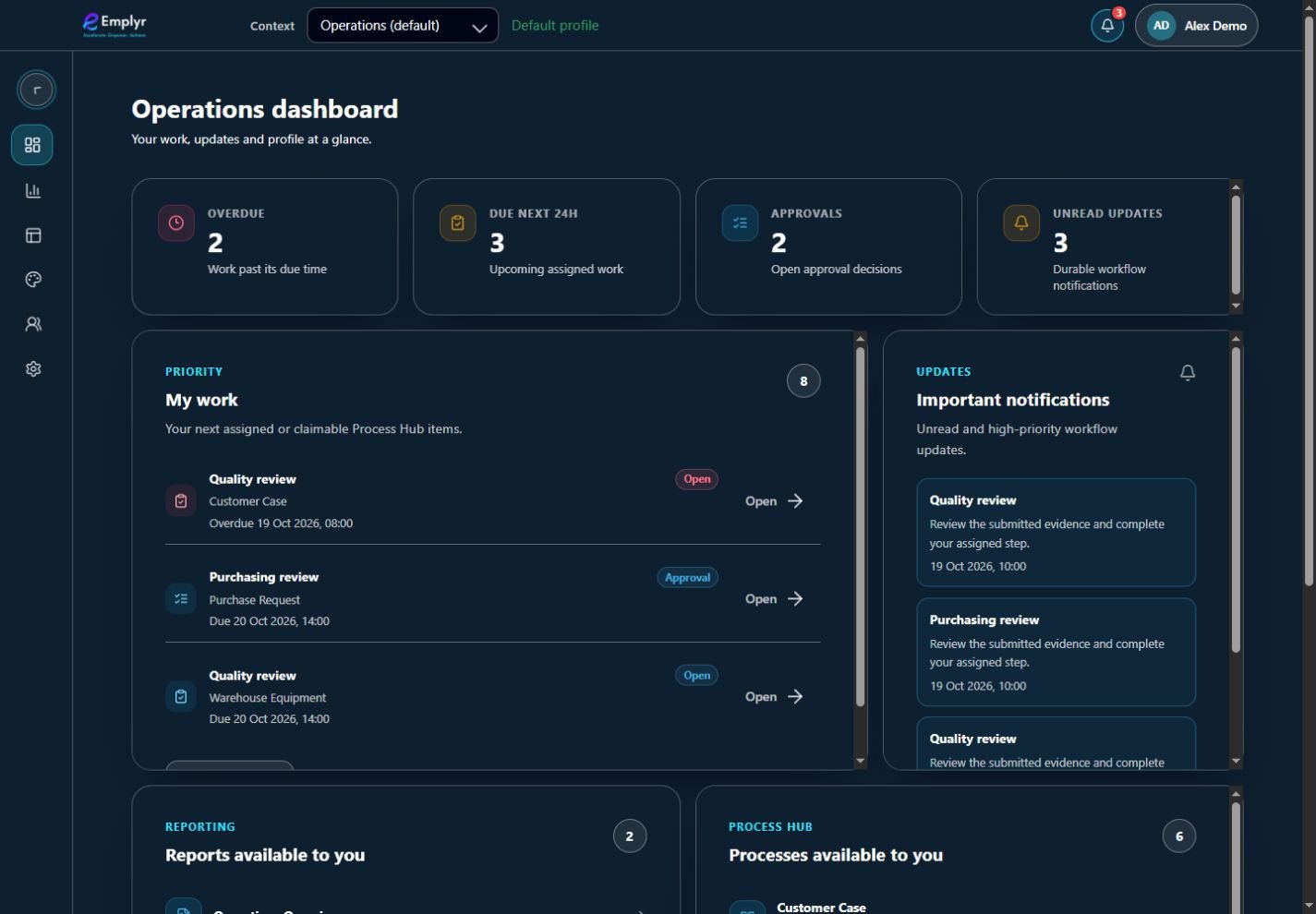
The active profile appears in Context. Its dashboard and menu show the work and modules available to you. - Wait for the profile page to reload, then check the selected name in the top bar. Open Reports, Process Hub or Settings only after this name is correct.
- If you want this profile to be your default in this instance, select Make default when it is shown beside the selector. This is separate from your default login instance.
- If you are an instance administrator, select Admin / Global when you need instance administration. Select a profile again before doing profile-specific work.
What you should see
Pages and data use the selected profile. Your role and the enabled features may differ from the previous profile.
If something goes wrong
The profile is missing
Confirm the instance first. Ask an administrator to assign a profile role; knowing a profile name or URL does not grant access.
The page or sidebar changes after switching
This is expected when roles, modules or navigation views differ. Check the profile name before assuming a feature was removed.