 Emplyr
Process Hub · Connections and lookup sources
How to configure Process Hub storage
Connect the profile’s runtime SQL target and lookup Lakehouse before deployment.
On this page
Before you start
- Have the approved target database/Lakehouse and credentials/permissions from your data administrator. This changes runtime infrastructure and should be coordinated with the process owner.
Follow these steps
Screenshots use fictional training data. Names, dates and amounts are examples. Select an image to view it at full size.
- Select the intended profile and open Settings → Fabric setup. Find Process Hub storage.
- Under the runtime SQL target, select the supported database/connection type shown by your environment. For Azure SQL, enter Server, Database, Username and Password; for Fabric SQL, select the intended database.
- Select Save, then Test. Read the test result and resolve connection/schema permission problems with the data administrator.
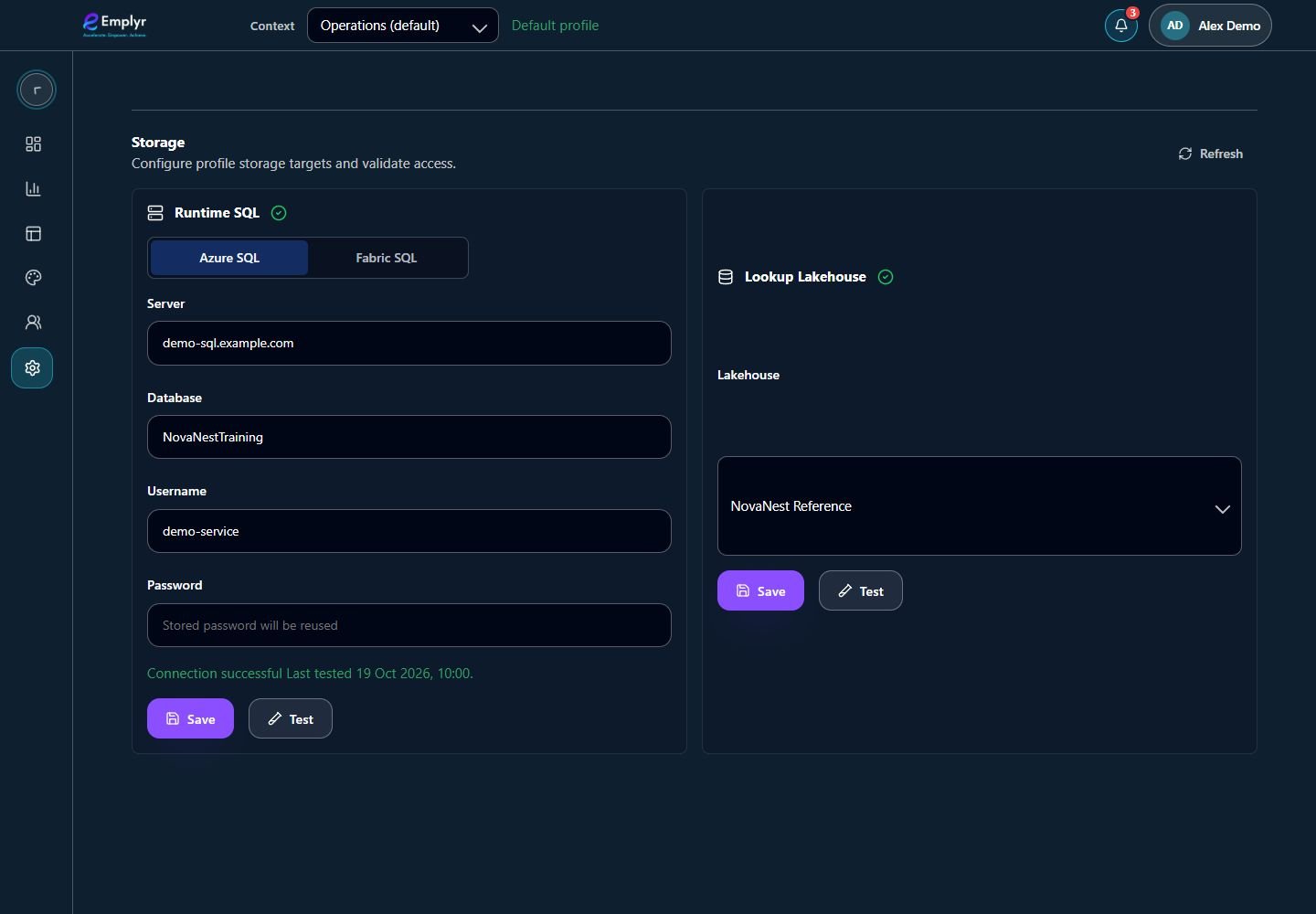
Configure and test the approved runtime SQL target and lookup Lakehouse. Changing the target does not migrate existing records. - Under Lookup Lakehouse, select the approved Lakehouse, then Save and Test. This source is used to stage configured lookup tables into runtime SQL.
- Open Settings → Process Hub → Deployments and check runtime readiness before deploying a process. Configure individual lookups separately under Lookups.
- If changing an existing runtime target, plan the data/availability implications with its owner first. Selecting a new connection is not an automatic migration of existing process records.
What you should see
The profile has tested runtime and lookup sources for its intended deployments and lookup staging.
If something goes wrong
The storage controls are read-only
Ask the instance/connection administrator to perform the configuration with the required access.
Test fails after Save
A saved configuration is not a working connection. Keep the test reference and have the database owner check network, credentials and required permissions.