 Emplyr
Process Hub · Workflows and approvals
How to review and decide an approval
Review the submitted record and send the permitted approval decision.
On this page
Before you start
- Have the approval assigned to you or claim it from your eligible role. Android approval decisions require an internet connection.
Follow these steps
Screenshots use fictional training data. Names, dates and amounts are examples. Select an image to view it at full size.
- Open Process Hub → My work and find the approval item, or open its notification. Check the profile and record identity.
- If Claim is shown for role-assigned work, claim it before opening the review. Use the approval’s review/open action.
- Review the submitted answers, line items and supporting evidence. Confirm the decision is about this record and this approval stage.
- Choose the offered decision, such as Approve or Reject, and supply any required comment or next-stage assignee. A process can restrict the available people/actions.
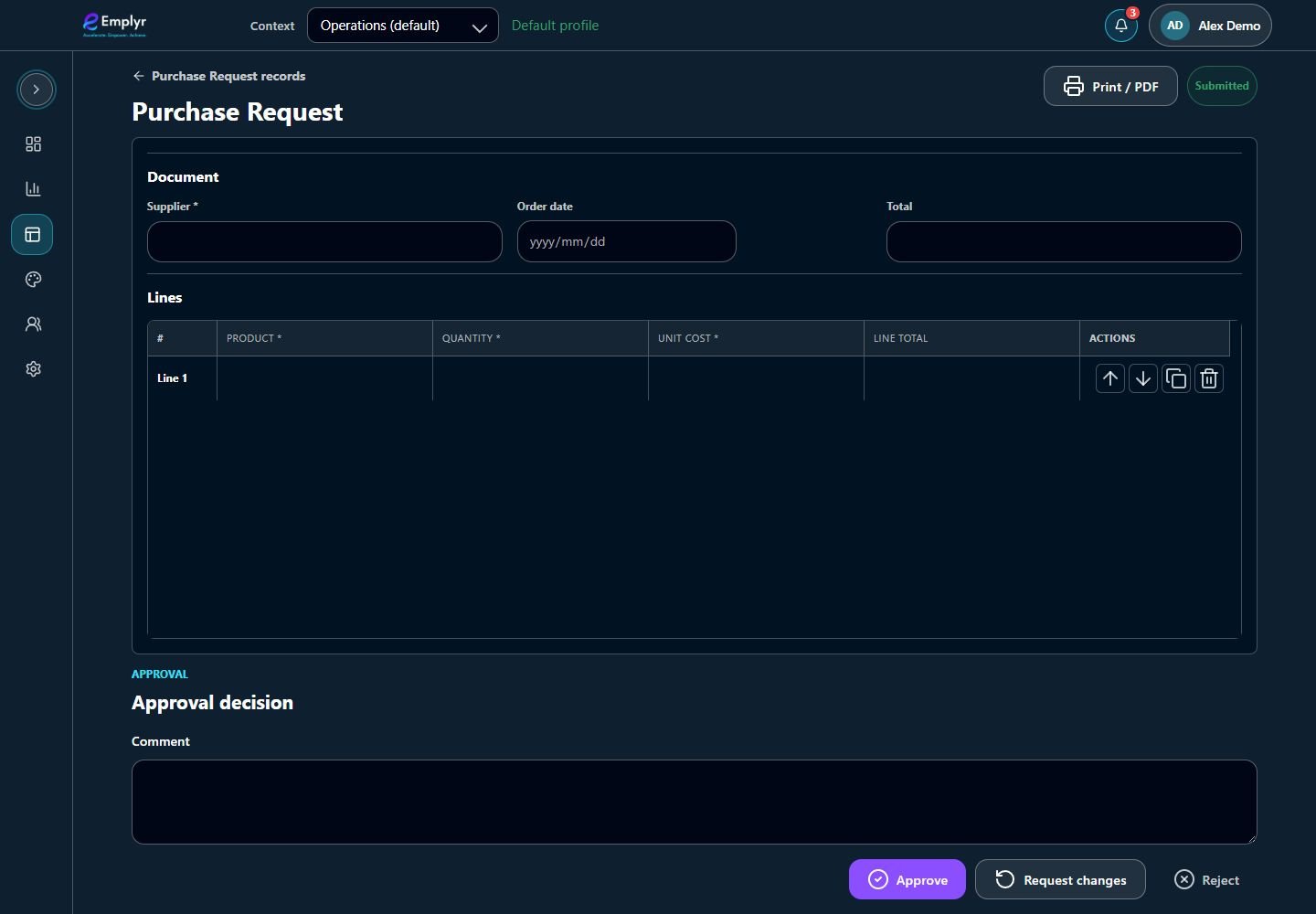
Read the record and add any required comment before selecting the appropriate approval decision. - Submit the decision once and wait for the result. Read whether another approval stage is next rather than assuming your decision finished the entire workflow.
- Return to My work or Notifications and confirm the item’s state. If you need changes rather than approval, use the configured change-request path or ask the process owner.
What you should see
Your decision is recorded for the assigned approval stage and the active workflow determines what happens next.
If something goes wrong
The decision controls are absent
Check assignment, claimed state, current stage and whether someone else already acted. Broader record visibility does not grant approval authority.
No assignee matches the configured rules
Ask a manager to check current profile users/role rules; do not choose an unrelated person to bypass the requirement.
The Android device is offline
You can review downloaded information but must reconnect to approve, reject or request changes.