 Emplyr
Using Emplyr · Sign in, invitations and passwords
How to sign in with a worker login
Use an administrator-issued username and replace your temporary code.
On this page
Before you start
- Have the complete issued worker login, temporary code, expiry time and correct Emplyr address. A worker account belongs to one instance and one managing profile.
Follow these steps
Screenshots use fictional training data. Names, dates and amounts are examples. Select an image to view it at full size.
- Open the supplied Emplyr address. Enter the full issued login in Email or username, including its numbered suffix. Do not replace it with a personal email address.
- Enter the temporary code exactly as issued and select Sign in. Temporary codes expire after 48 hours.
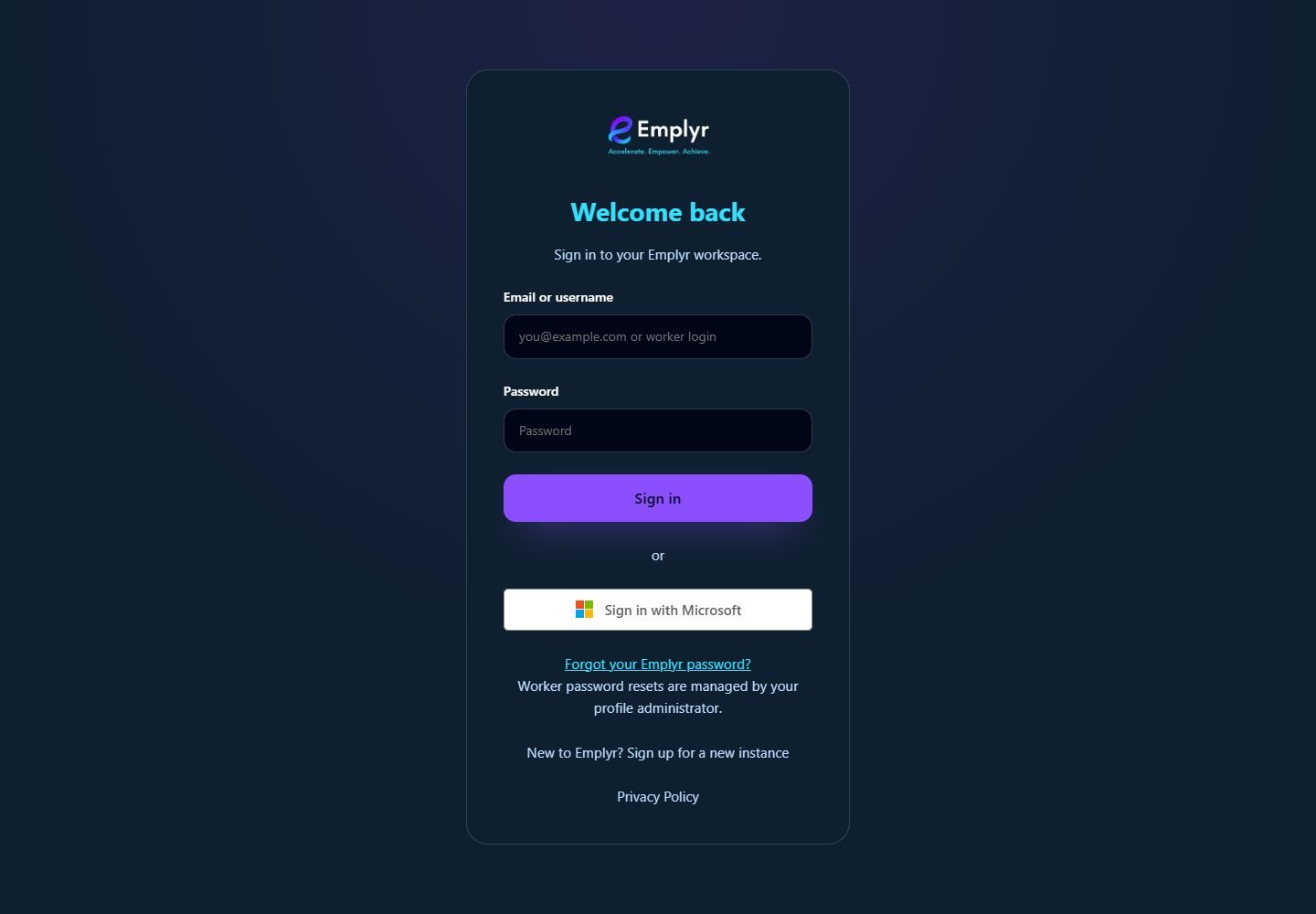
Use the sign-in method issued by your administrator. Worker logins use the same Email or username field. - On Set a new password, enter the temporary code if requested, choose a private password of at least eight characters, confirm it and select Update password.
- Continue to your assigned profile and check its name. On Android, the first-time screen uses Choose your password; you must remain online to complete it.
- For later sign-ins, use the same worker login and your private password. Keep the login identifier even after the temporary code has been replaced.
What you should see
You can work in the assigned profile. Worker accounts cannot be promoted to instance admins, added to other profiles/instances, or provisioned for Fabric tenant access.
If something goes wrong
The code expired or you forgot your private password
Ask your profile administrator to reset the worker password. A fresh code replaces the old one and existing sessions are revoked.
You cannot find your original login
Ask the administrator for the issued login identifier. Do not guess a new suffix or use the account’s hidden internal email.