 Emplyr
Using Emplyr · Sign in, invitations and passwords
How to sign in and sign out
Use your email or worker login and end your session safely.
On this page
Before you start
- Have your organisation’s Emplyr web address and your own account details. First-time email users should open their setup email; worker users need the issued full login and temporary code.
Follow these steps
Screenshots use fictional training data. Names, dates and amounts are examples. Select an image to view it at full size.
- Open the Emplyr address supplied by your organisation. If it uses a branded domain, use that address rather than guessing a different instance URL.
- On Sign in, enter your email address or issued worker login in Email or username. Enter your password and select Sign in.
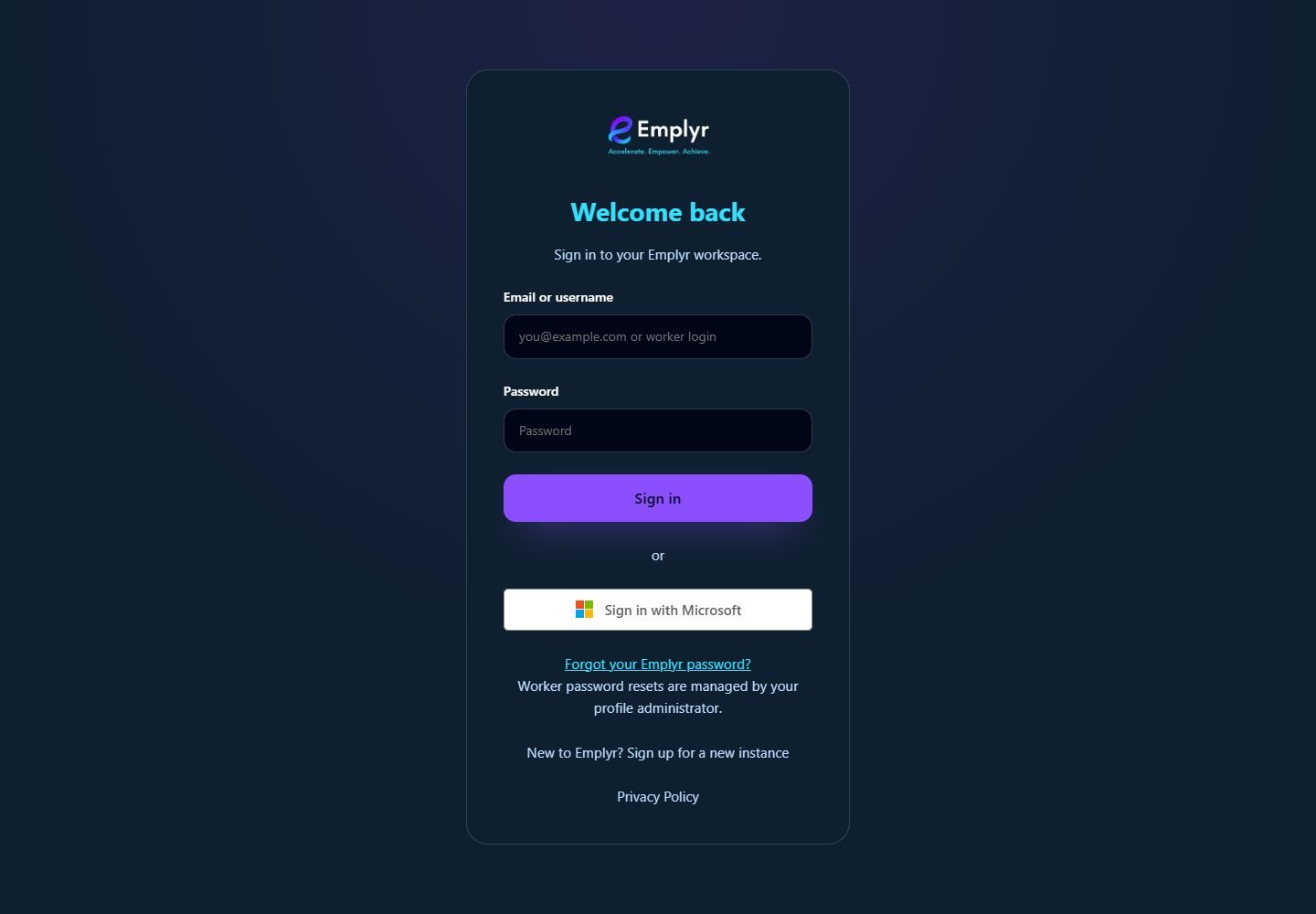
Use the sign-in method issued by your administrator. Worker logins use the same Email or username field. - If you used a worker temporary code, complete Set a new password before continuing. Use at least eight characters and confirm the new password.
- If an Instances page appears, choose the instance you are authorised to use. If setup is incomplete, an admin must complete it before ordinary member access is available.
- Check the instance in the account menu and select the correct profile in Context.
- To finish, open the account menu at the top right and select Logout. On a shared computer, also close report tabs that may still show information.

Check the instance name in the account menu. Use Switch Instance or Admin Portal when changing context, and Logout when you finish.
What you should see
You reach your authorised instance/profile, or return to the sign-in page after Logout.
If something goes wrong
You forgot an email-account password
Select Forgot password? on the sign-in form and follow the password-reset guide. You do not need to be signed in.
A worker temporary code has expired
Ask the profile administrator for a new code. Worker password resets do not use the email recovery form.
The same details fail on a branded address
The address may belong to another instance or its domain may not yet be active. Ask your administrator to confirm the correct login URL.