 Emplyr
Process Hub · Schedules and operating calendars
Configure operating calendars and date exceptions
Reuse working days and start times across Schedule Plans.
On this page
Before you start
- Have schedule-management and publication authority. Agree the profile scheduling timezone, normal working days, start time and exceptional dates.
Follow these steps
Screenshots use fictional training data. Names, dates and amounts are examples. Select an image to view it at full size.
- Open Settings → Process Hub → Workflows → Operating calendars. Review Profile scheduling timezone with the administrator before changing a setting that affects other schedules.
- Create a named calendar. Set its normal weekdays, default start time and enabled state. Save the draft and review the working-day preview.
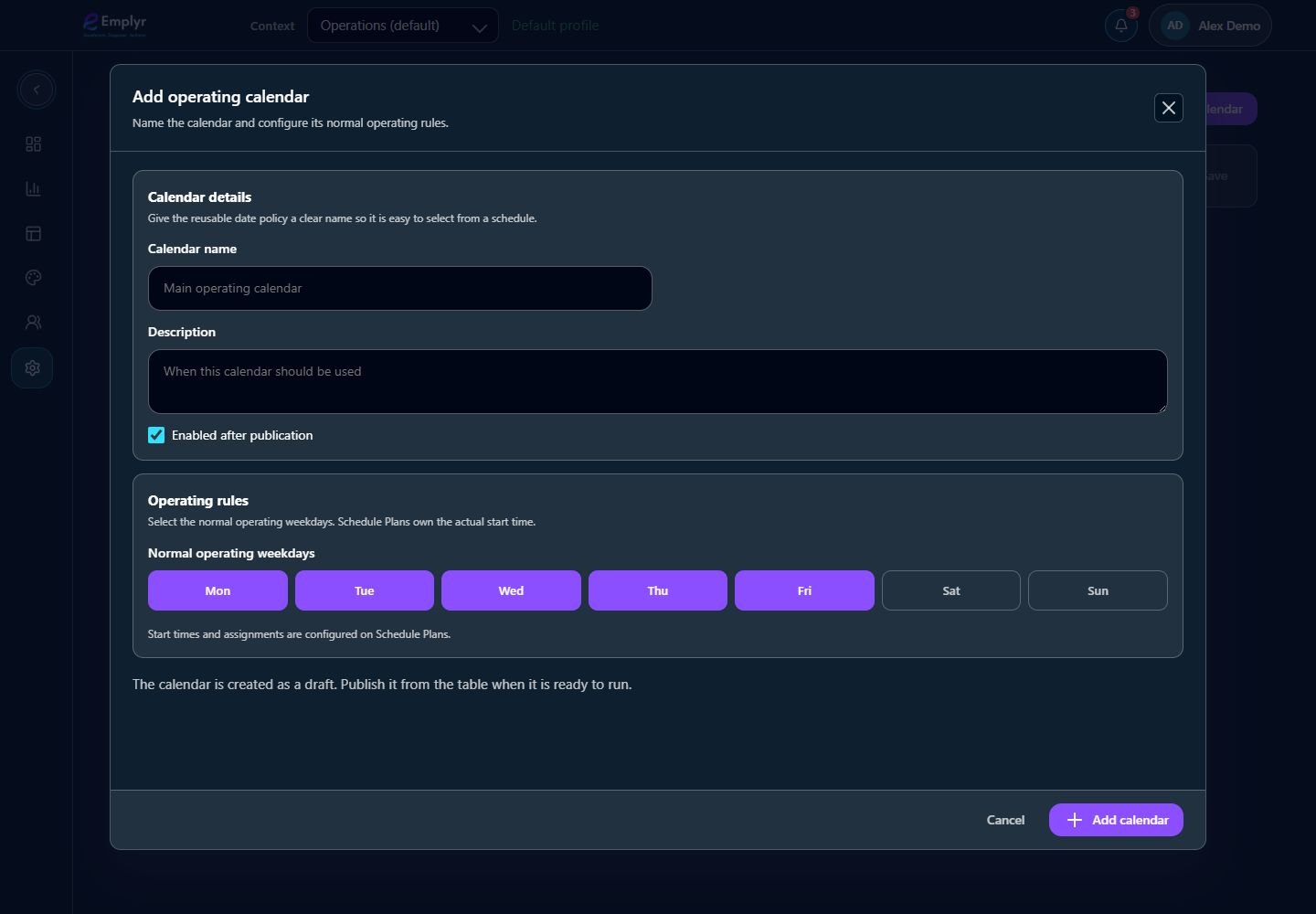
Choose the normal working days, then configure and review exceptions before publishing the calendar. - Publish the reviewed calendar from its table actions. Calendar rule drafts do not run merely because they were saved.
- Use Date exceptions → Add exception for a specific date. Choose Open or Closed, an optional Start-time override for an open date, and a useful Reason. Review carefully: date exceptions apply immediately, independently of a later rules publication.
- Open/create a Schedule Plan and select Operating calendar as its timing source, then choose this published calendar. Configure target processes, assignment and due rules and publish the plan.
- Inspect the calendar preview, attached schedules and Schedule activity for a normal day, closed exception and special open day. If indexing reports a warning, have the authorised operations owner resolve it before relying on the next run.

Check the schedule run, resulting record and assignment. A published plan alone does not prove that every due run succeeded. - Before changing a shared calendar, review every attached plan. Cancel an eligible future exception only when its operational effect has been agreed.
Example: warehouse opening check
Create Warehouse weekdays for Monday–Friday at 08:00 in the agreed profile timezone. Attach the Opening Check Schedule Plan. Add a Closed exception for a fictional training holiday and an Open Saturday exception with a 09:00 start. Confirm the preview and plan’s next due dates before enabling real work.
What you should see
Published plans follow the reusable working-day calendar and its effective date exceptions in the profile scheduling timezone.
If something goes wrong
Publishing the calendar creates no record
A calendar supplies dates. It needs an enabled published Schedule Plan with valid deployed targets and a running worker.
A holiday edit affected several teams
A reusable calendar can drive several attached plans; exceptions are effective immediately. Review attachments before changing shared dates.
The next run is stale after a timezone/calendar change
Inspect any reindex warning and the affected plans. Follow the authorised recovery path rather than changing the browser clock.