 Emplyr
Reports · Reporting setup and access
How to configure Reporting for a profile
Configure report visibility and semantic-model row security for a profile.
On this page
Before you start
- Reporting must be enabled and the profile bound to the intended workspace. You need Edit reporting setup and/or Edit reporting security roles for the part you manage; instance admins can configure their instance’s profiles. Coordinate model role names with the Power BI owner.
Follow these steps
Screenshots use fictional training data. Names, dates and amounts are examples. Select an image to view it at full size.
- Select the profile in Context and open Settings → Reporting. Check the profile/workspace before assigning access.
- On Reports, find each report you intend to expose. Edit its description/status where needed and use Assign access to select the allowed profile Roles and/or Users. Apply the access selection.
- On Semantic models, choose Configure RLS for the model used by the report. Confirm the Fabric semantic model ID and configuration health.
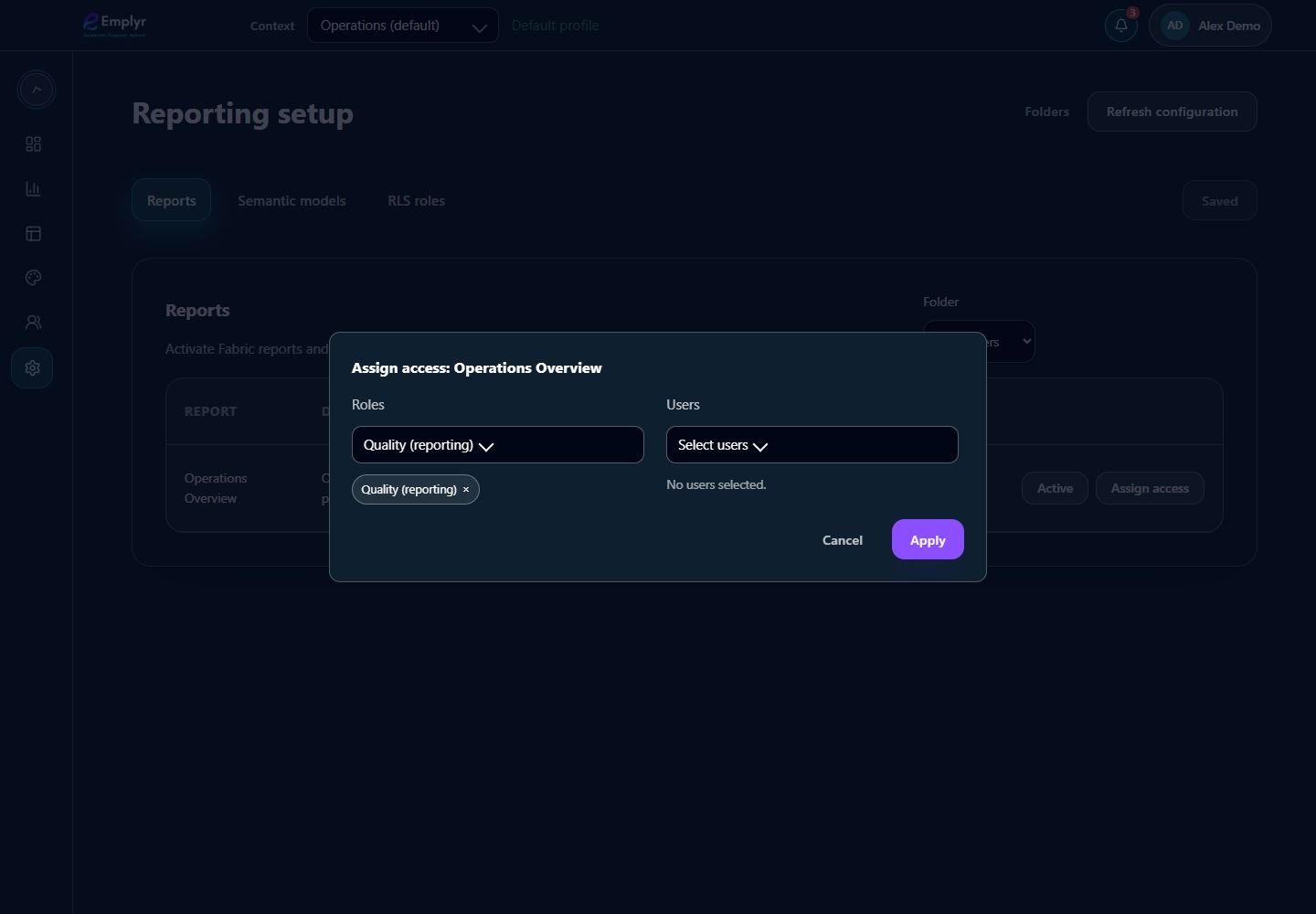
Grant the report to the intended roles or users. Report access and data security must both be configured. - Choose No RLS, Profile roles or RLS roles. Profile roles sends the viewer’s profile-role names to Power BI. RLS roles uses the explicit RLS roles and membership configured here.
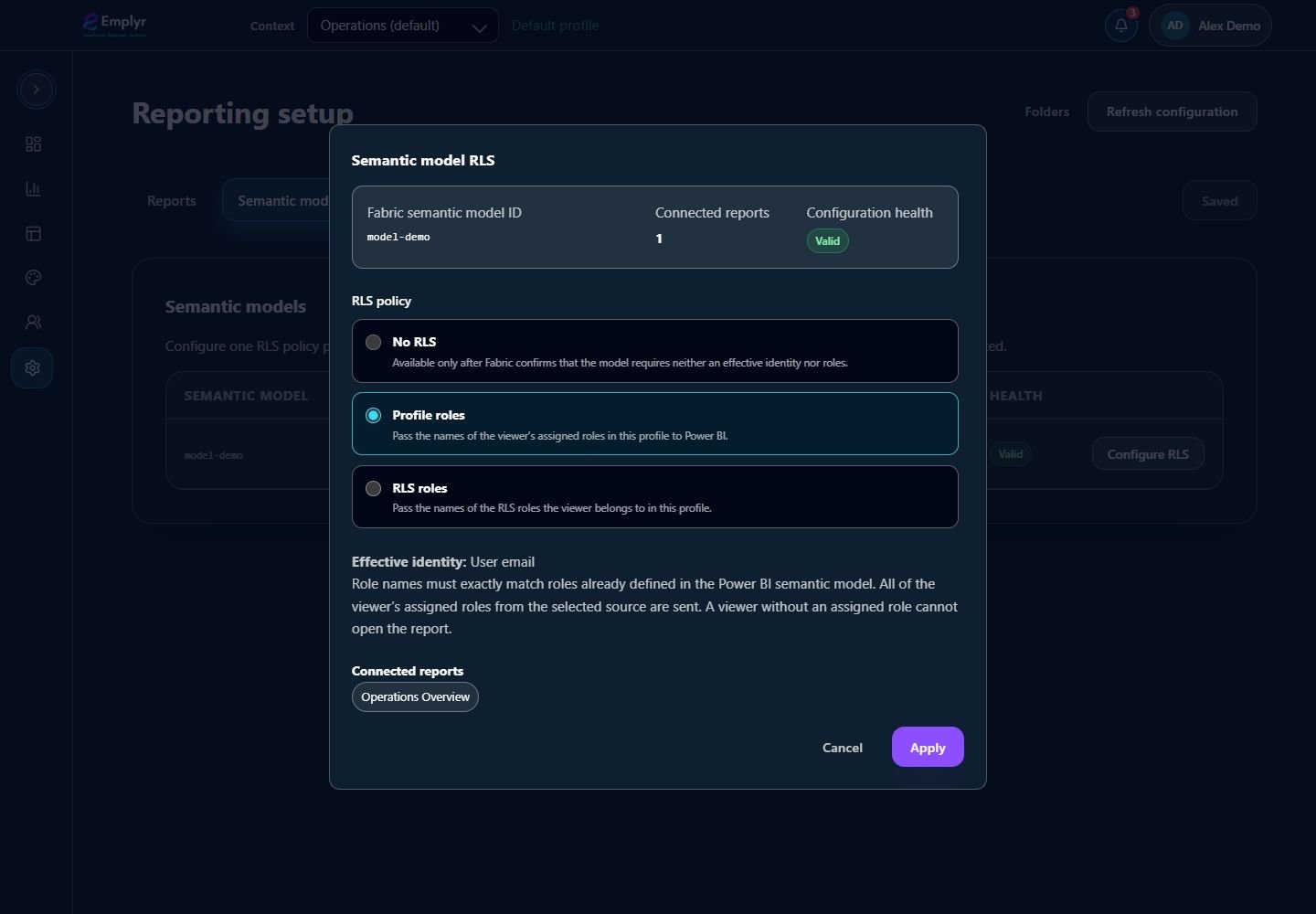
Select the policy that matches the semantic model. When using Profile roles, the role names must match the model’s RLS roles. - If using RLS roles, open that tab, select Add role, use the exact role name defined in Power BI and select its users. Save the role and the model configuration.
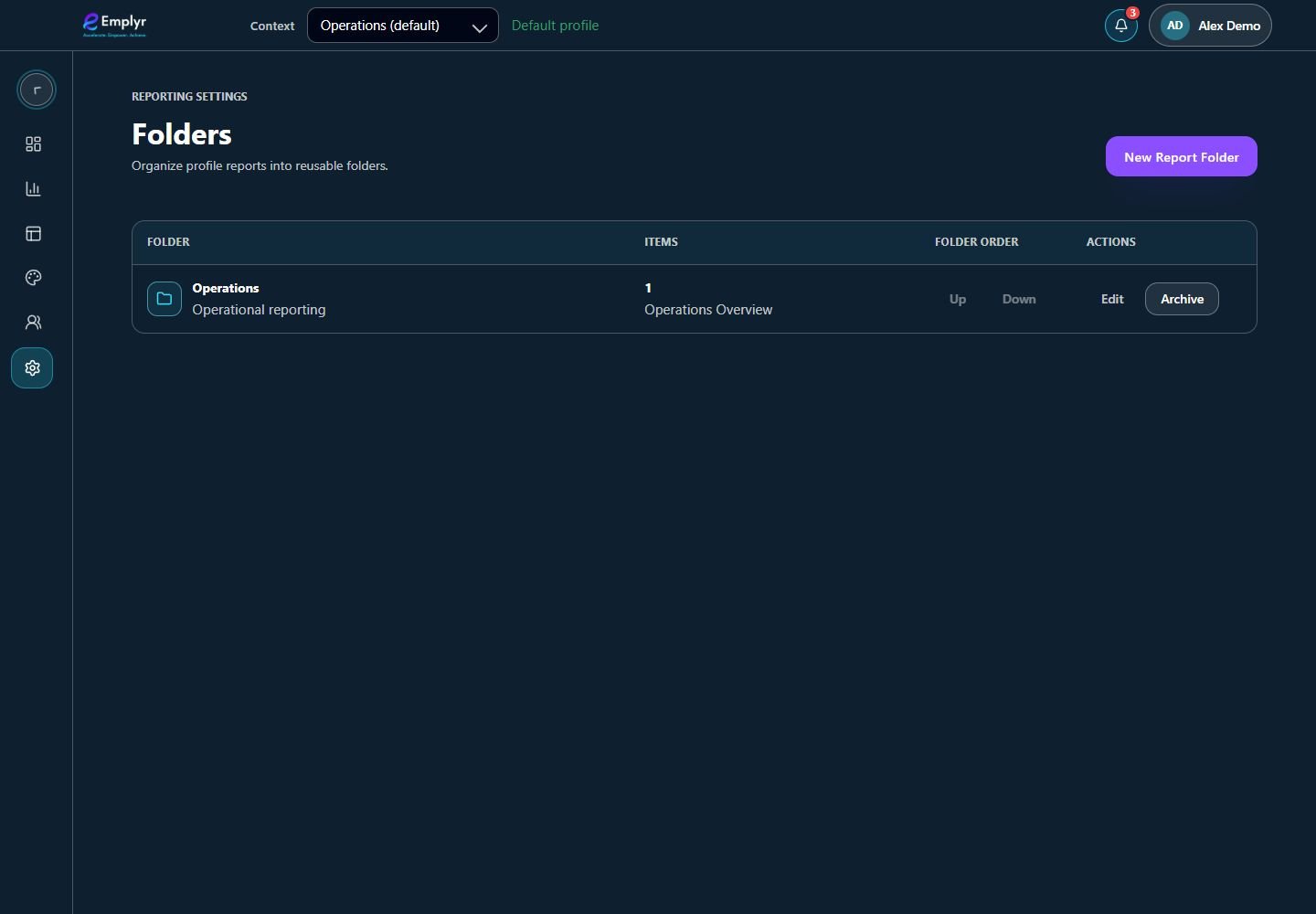
Use folders to organise the profile’s reports. Folder placement does not grant report access. - Test with an intended viewer: confirm the report appears and that the permitted rows are correct. Use Folders to organise reports separately from their access grants.
What you should see
The right members can discover the report, and the model uses the selected identity/RLS policy. RLS membership alone does not grant report visibility.
If something goes wrong
Controls are read-only
Check the specific reporting setup/security permissions. A delegated manager may be authorised for one area but not the other.
The model is unresolved or unhealthy
Ask the report/model owner to repair the workspace/model binding before testing embedding.
The viewer sees too many or too few rows
Review the model’s policy, exact Power BI role names and memberships. Instance Admin access is not a guarantee of unrestricted report rows.