 Emplyr
Process Hub · Use processes and complete work
How to work with header-and-line records and batches
Enter document lines and understand open versus closed transaction batches.
On this page
Before you start
- Open the intended process and check whether it uses ordinary header/lines or Transaction batch. You need run/edit access and a permitted record state.
Follow these steps
Screenshots use fictional training data. Names, dates and amounts are examples. Select an image to view it at full size.
- Create/open the document header. Check its number, date and shared values before adding lines.
- For ordinary header/lines, add the required line rows and complete each row’s fields. Review row validation and calculated totals/balance rules.

The example has line totals of 250 and 240 and a document total of 490. Save and reopen to verify persistence before final submission. - Save a draft or submit the complete document using its outer record controls. Moving to another page or completing a section is not final submission.
- For Transaction batch, create the header first, then choose Open batch to capture its child records. Check the batch identity before adding transactions.
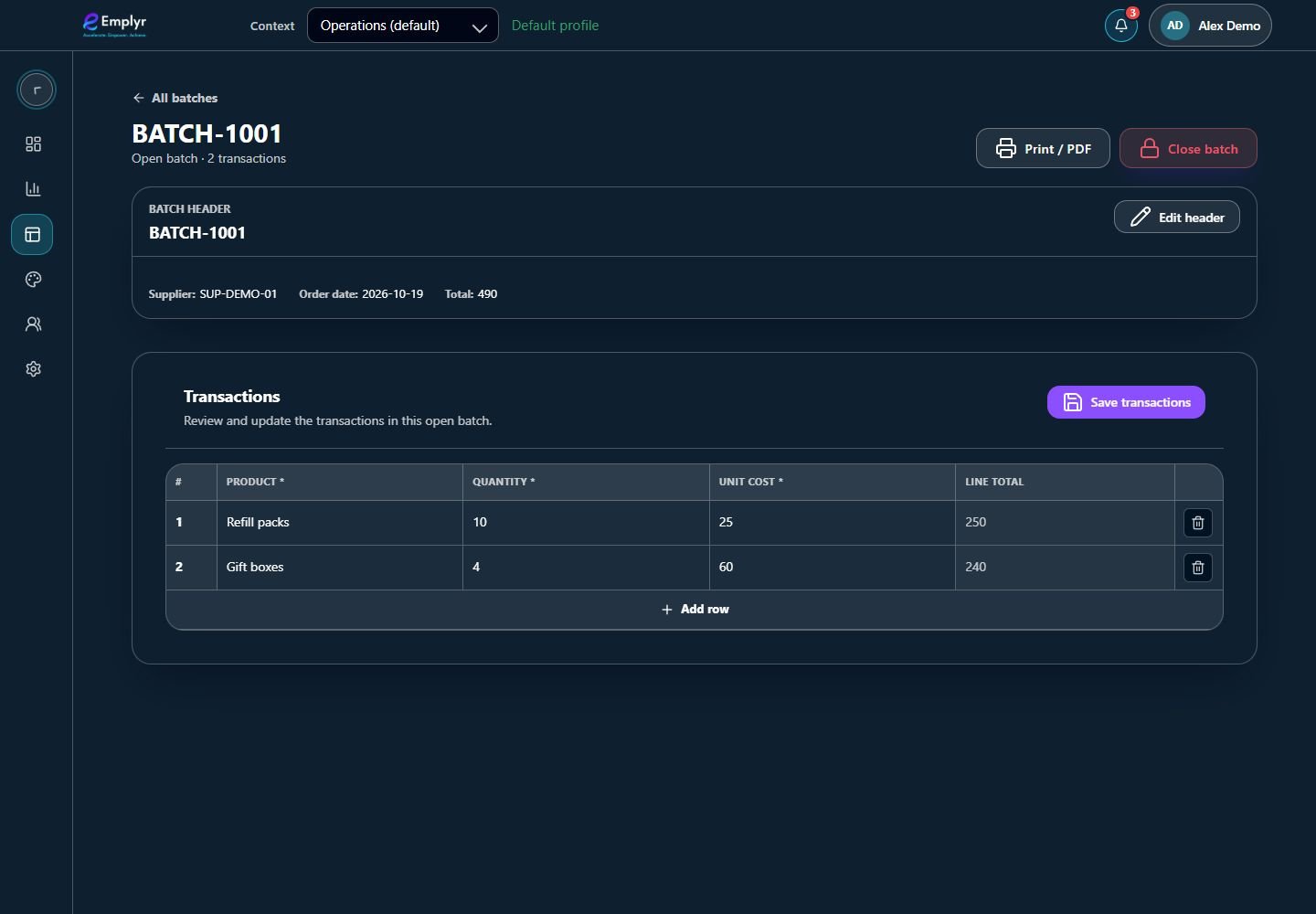
Save transaction changes first. Close batch is a separate action with the configured locking consequences. - Review Transactions while the batch is open. Use Close batch only after the required capture/review is complete and you understand its final-action choice.
- Confirm the batch status. Closed batch records are read-only; ask the process owner for the approved correction path.
What you should see
The document or batch contains the intended header and lines with a confirmed saved/submitted/closed state.
If something goes wrong
Totals do not balance
Check input lines and the configured balance message. Correct calculated totals through their inputs.
A child transaction is read-only
Check its parent batch, closed state and your access.