 Emplyr
Process Hub · Connections and lookup sources
How to install the Emplyr Connector for Windows
Pair a local Windows connector and test its actual service account.
On this page
Before you start
- Have an approved Windows machine, the connector package, .NET Framework 4.8, outbound HTTPS to Emplyr, and network access to SQL Server. Arrange least-privilege SQL read/metadata access and a suitable service identity.
Follow these steps
Screenshots use fictional training data. Names, dates and amounts are examples. Select an image to view it at full size.
- In the correct instance, open Admin / Global → Connectors and generate a pairing code. It is one-time and expires after 15 minutes.
- Extract the complete downloaded connector ZIP. Run EmplyrConnectorSetup.exe and approve the Windows administrator prompt.
- Enter the organisation’s Emplyr URL and pairing code. Enter the approved SQL Server/database connection details.
- Choose the Windows service account. For Windows authentication, use the approved dedicated account and password, or Local System only when its computer account has the required SQL access.
- Select Test SQL connection. Check the executing account in the result; the actual service tests table/view/column discovery, not only opening a connection.
- Select Install and pair after the test succeeds. Confirm the connector appears in Emplyr and its heartbeat/source metadata is current.
- Keep production SQL encryption enabled and arrange source grants to the intended profiles. Configure the business binding from that profile’s Process Hub Connections screen.
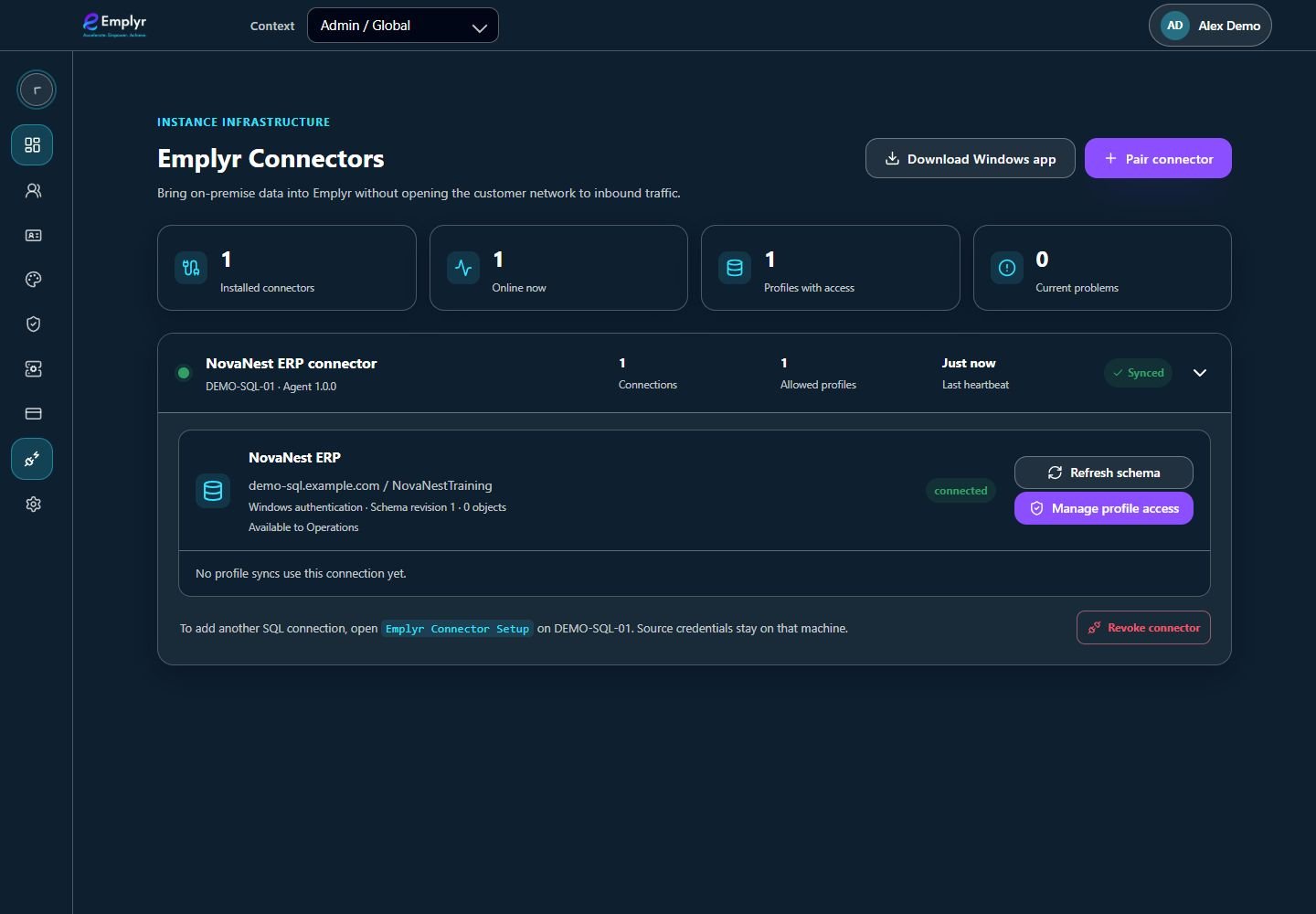
Expand the connector source and use Manage profile access to grant it to the intended profiles.
What you should see
The Windows service is paired and reports approved source metadata. SQL credentials remain protected on the Windows machine.
If something goes wrong
Pairing expired
Generate a new code in the correct instance and retry; do not reuse a consumed code.
The connection works interactively but the service test fails
Check the selected service identity’s SQL/network permissions, not just your own Windows login.
The source is paired but no business data arrives
Pairing is infrastructure setup. Grant the source to a profile and deploy its inbound binding separately.