 Emplyr
Sign up & instance setup · BYOF: identity, access and monitoring
Create the BYOF app registration and service principal
Create the application identity, generate its client secret and record the exact values Emplyr needs.
BYOF setup checklist · Task 1 of 5
On this page
Before you start
- Sign in to the Microsoft Entra tenant that owns your Fabric capacity. Ask an authorised application administrator to perform these steps if you cannot create app registrations. This is the application’s identity; your purchaser’s Microsoft login remains separate.
- Agree an app name, credential owner and expiry policy. The example names in this guide are fictional: emplyr-novanest-production and Emplyr Fabric Service Principals.
Keep these identifiers distinct
On smaller screens, scroll the table sideways to see all columns.
| Setting | What to select |
|---|---|
| Directory (tenant) ID | The Fabric directory. |
| Application (client) ID | The application identity used in Emplyr’s connection form. |
| Enterprise application Object ID | The tenant’s service-principal object for group/access administration. |
| Client secret Value | The private credential accepted by Emplyr; never put it in a guide, screenshot or support message. |
| Secret ID / app Object ID | Administrative identifiers, not substitutes for the secret Value or client ID. |
Where this credential is used
Emplyr’s current BYOF form supports client-secret authentication. The runtime stores that value in Key Vault and clears it from the browser. The app registration does not need an interactive callback URL or Microsoft Graph permissions merely to authenticate the Fabric connection.
Follow these steps
Screenshots use fictional training data. Names, dates and amounts are examples. Select an image to view it at full size.
- Open Microsoft Entra admin center and select the intended directory. Go to Entra ID → App registrations → New registration.
- Enter the agreed name. Choose the single-organisation account type and leave the redirect URI empty for this non-interactive Fabric connection. Select Register.
- On Overview record Directory (tenant) ID and Application (client) ID. Emplyr uses these two values; neither is the app registration’s Object ID.
- Open Entra ID → Enterprise applications → All applications and find this application. Confirm its application ID matches. The entry is the service principal created for this tenant; record its Object ID only if your administrator needs it for membership/access checks.
- Return to the app registration → Certificates & secrets → Client secrets → New client secret. Enter a useful description and the expiry approved by your organisation, then select Add.
- Copy the new secret’s Value into the approved credential store immediately. Record its expiry and owner. The Secret ID cannot authenticate Emplyr, and the Value cannot be displayed again after leaving the page.
- Follow the permissions guide next: add the service principal to the approved security group, scope the Fabric tenant settings, and grant capacity/workspace access. App registration by itself gives no access to Fabric data.
- In Emplyr’s BYOF setup → Connect Fabric enter Directory (tenant) ID, Application (client) ID and Client secret value. After permissions are ready, choose Verify & continue. An existing tested connection offers Continue with saved connection; replacement uses Replace & verify credentials.
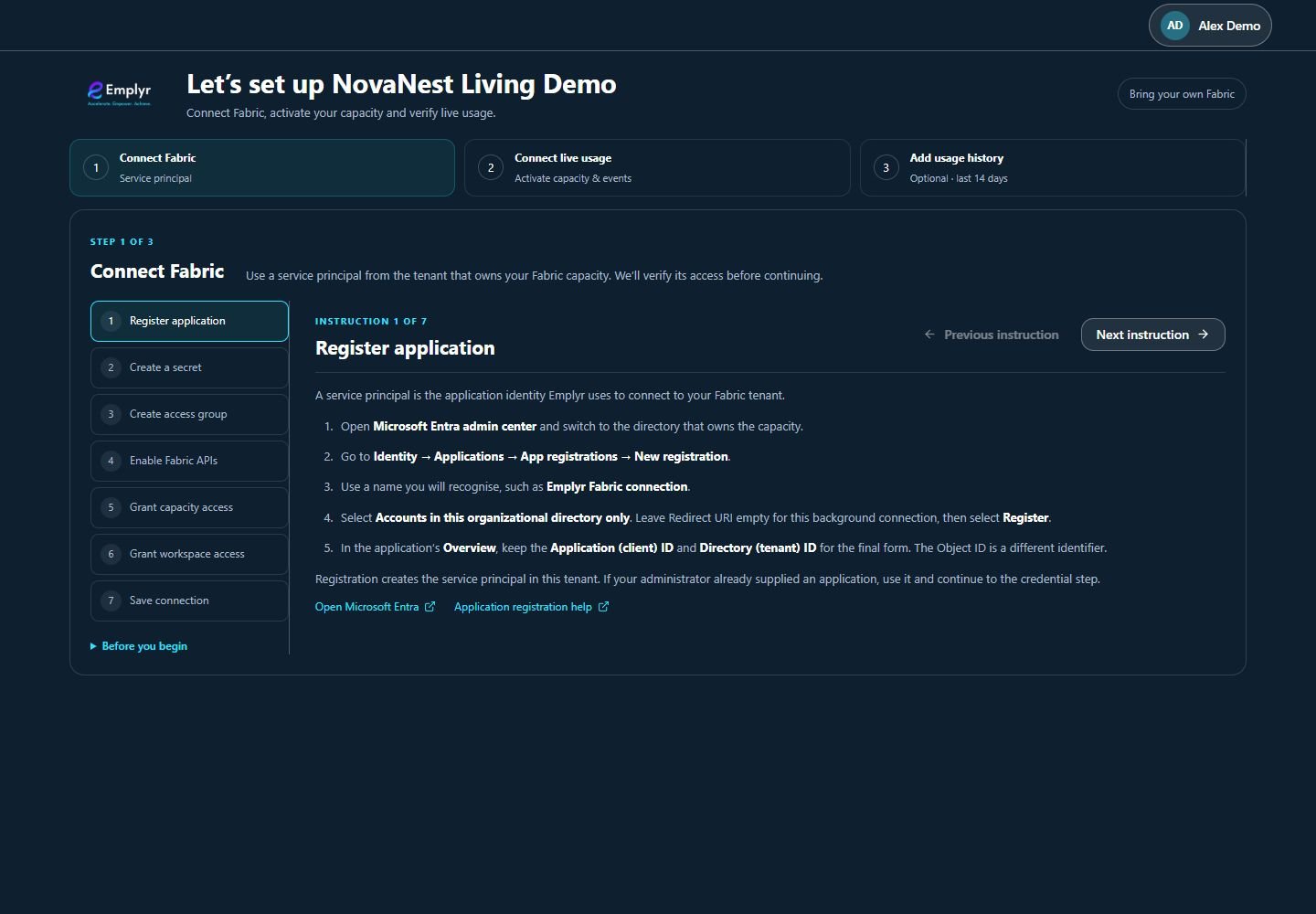
Work through Connect Fabric in order, using the detailed Microsoft preparation guides alongside these instructions.
Provider reference
What you should see
The app registration and enterprise application refer to the same identity, the three connection values are held securely, and Emplyr can verify the identity once its resource permissions are assigned.
If something goes wrong
I can find the registration but not the enterprise application
Check the current directory and application ID under Enterprise applications → All applications. Ask the application administrator to check the service principal before making a duplicate app.
I copied Secret ID instead of Value
Create a replacement secret through the credential owner and use its one-time Value. Retire the old credential according to the organisation’s rotation procedure after the replacement is tested.
Microsoft sign-in succeeded but Verify & continue fails
Interactive account sign-in and application authentication are separate. Recheck tenant/client IDs, secret expiry, scoped Fabric settings and the identity’s resource access.