 Emplyr
Sign up & instance setup · Choose, purchase and set up
How to sign up with Bring Your Own Fabric (BYOF)
Connect a BYOF purchase, verify the Fabric identity, activate capacity and live monitoring, then optionally add recent usage history.
On this page
Before you start
- Complete the BYOF preparation guide with your Microsoft administrator. Have the intended Fabric tenant, accessible active F-series or supported Fabric trial capacity, workspace access and a secure service-principal credential ready.
- Use the approved BYOF offer/plan and purchaser/beneficiary identity. The Fabric tenant must match the Marketplace beneficiary tenant, or purchaser tenant when no beneficiary is supplied. Involve purchasing and IT before buying across different tenants.
Three separate activation checks
On smaller screens, scroll the table sideways to see all columns.
| Item | What it means |
|---|---|
| Fabric capacity active | The provider resource is running and accessible. |
| Emplyr Commercial activation | The selected BYOF capacity participates in Emplyr access/banding; this starts the first base trial. |
| Microsoft SaaS activation | The purchase is fulfilled after the app’s readiness/base-access requirements and provider verification. |
Detailed Microsoft setup guides
Follow these steps
Screenshots use fictional training data. Names, dates and amounts are examples. Select an image to view it at full size.
- Complete the BYOF preparation checklist and shared Marketplace purchase through Configure Account. In Set up Emplyr confirm Bring your own Fabric, verify your Microsoft identity and create/select the intended Customer instance. Select Continue setup.
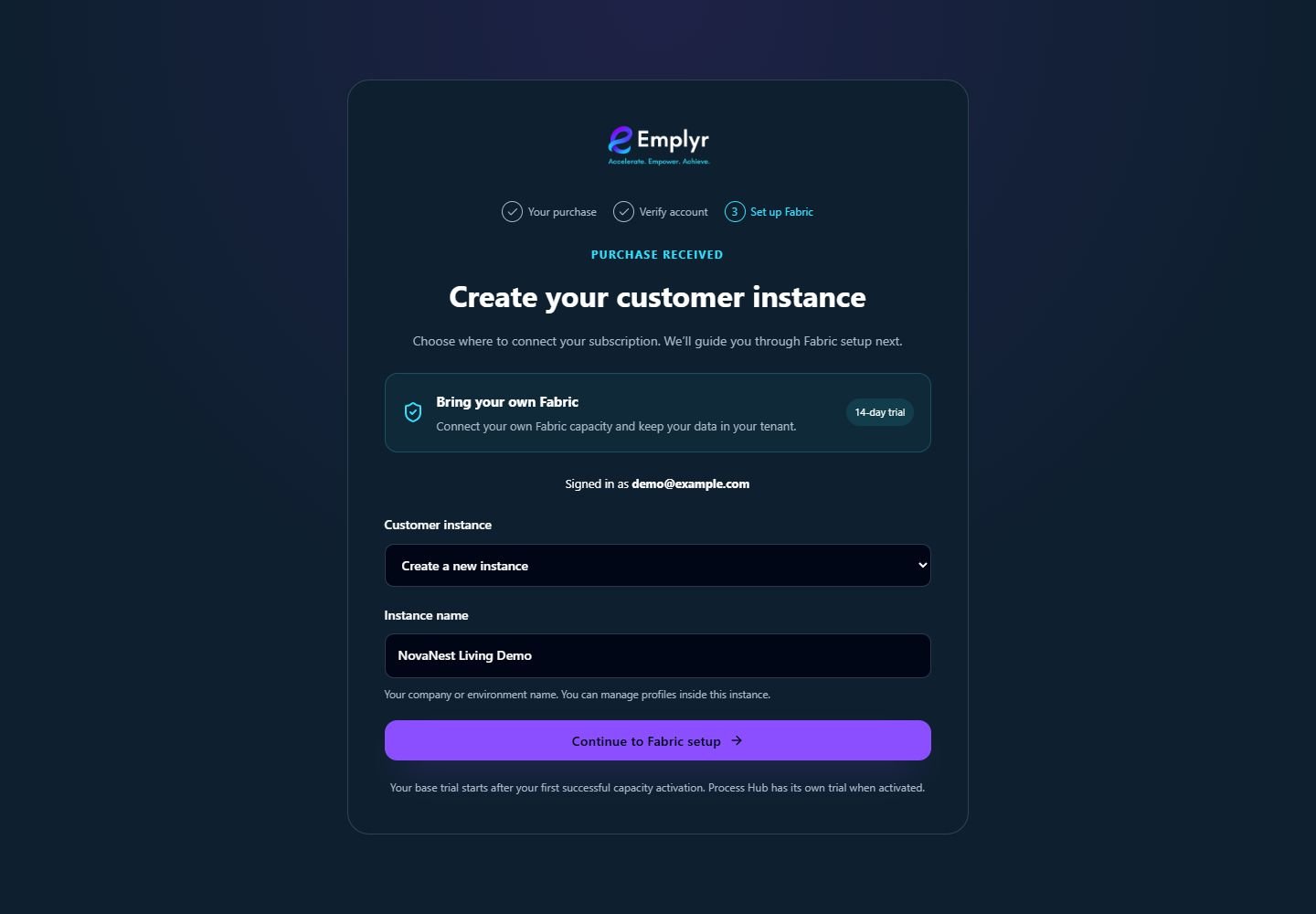
Check the BYOF hosting label and the signed-in identity before creating the named customer instance. - In Connect Fabric enter Directory (tenant) ID, Application (client) ID and Client secret value. Choose Verify & continue and resolve errors. For an existing connection use Continue with saved connection, or Replace & verify credentials when deliberately replacing it.
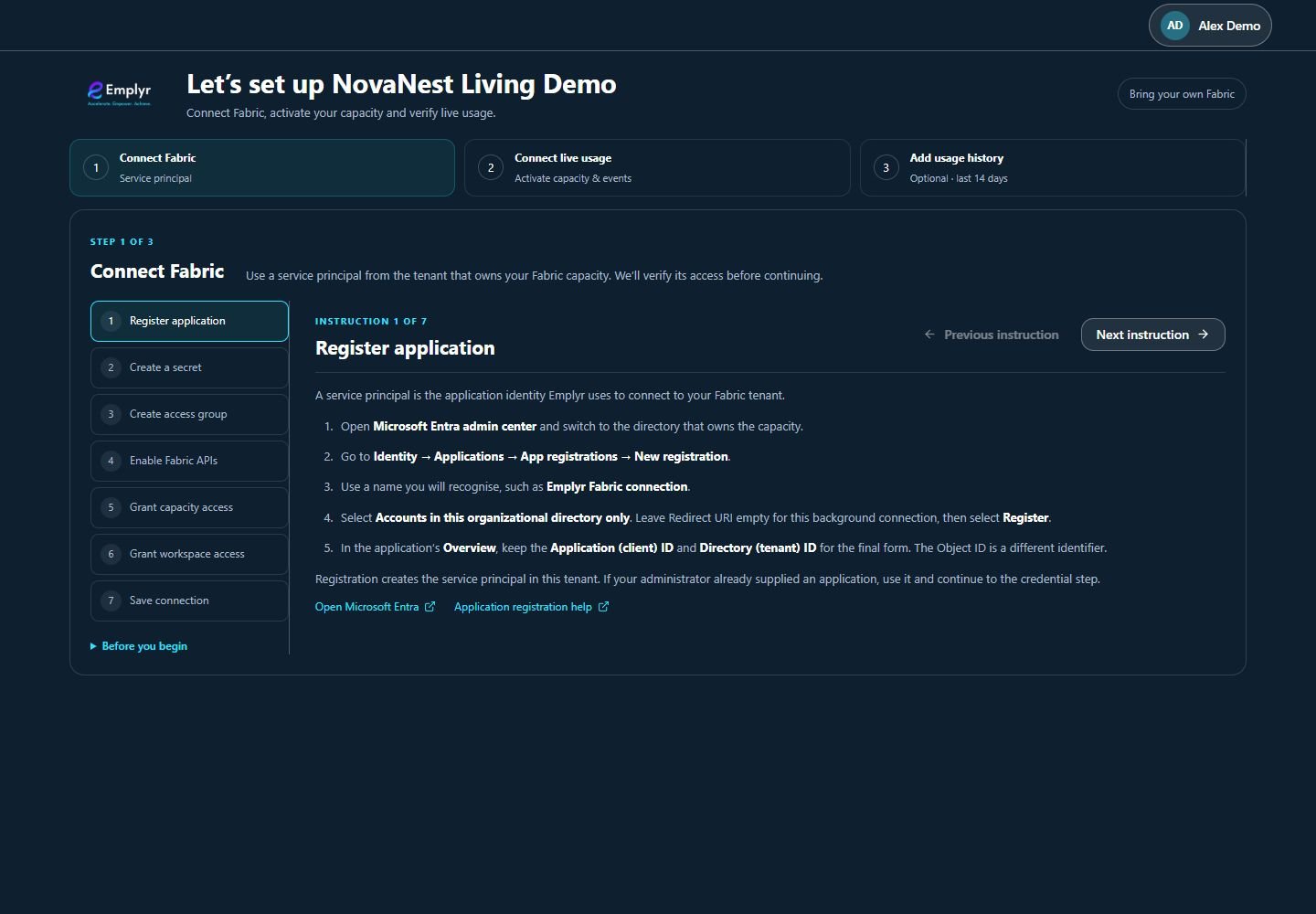
Work through Connect Fabric in order, using the detailed Microsoft preparation guides alongside these instructions. - In Connect live usage use Refresh if needed, then Activate the approved accessible active F-series/Fabric trial capacity. At least one activated capacity is required for this enrolled BYOF flow. The first successful activation starts the base trial; review its subscription effect.
- Beside each intended capacity choose Set up stream or Manage stream. Follow the detailed Eventstream guide: publish both operation and overview sources for that capacity to the Custom endpoint destination, then save/verify its destination in the wizard.
- Have the deployment administrator confirm collection and generate real capacity workload. Check Overview events received and Operation events received. Closing the stream wizard with Finish setup alone does not prove delivery.
- Back in Connect live usage choose Verify events & continue. A successful live check makes the instance Ready and opens Add usage history. Fix missing events or capacity activation if the check fails.

Check activation and receipt of both event types before Verify events & continue. Optional usage history is a later step. - Optionally follow the Capacity Metrics app guide, enter Capacity Metrics workspace ID (or leave blank for discovery) and choose Import last 14 days. Review the one-time result. Otherwise choose Skip history & go to Emplyr; after an import choose Go to Emplyr.

History import is optional. Enter the Metrics workspace ID or allow discovery, or choose Skip history & go to Emplyr. - In Admin / Global → Fabric choose Make default if needed for new workspaces. Confirm an existing workspace’s actual capacity before binding a profile; a default selection does not move existing workspaces.
- Open Subscription & modules and confirm BYOF, base-access/trial dates and Activity. Microsoft activation completes separately after readiness and base access. Create the first profile on its eligible workspace, enable modules, assign roles and test with a member. Activate Process Hub separately if required.
Trial and costs
Emplyr’s base trial and Process Hub trial are separate. A Fabric trial capacity is another Microsoft resource with its own eligibility/expiry. Do not assume an Emplyr trial removes your organisation’s Azure/Fabric charges; check the purchase terms and your resource billing.
What you should see
The BYOF instance has a tested customer Fabric connection, validated event feed, deliberately activated capacity access and a first profile ready for controlled use.
If something goes wrong
Verify & continue rejects the credential
Check tenant ID, client ID and secret Value/expiry, scoped tenant settings and app capacity/workspace access. Existing Admin → Fabric uses Save & Test for connection maintenance.
A tenant mismatch blocks association
Use the Fabric tenant agreed with the purchase beneficiary. Have purchasing/IT correct the identity or purchase arrangement; entering another tenant’s IDs is not a workaround.
The capacity is missing or cannot be activated
Check that the service principal can access it, that it is active, and that it is an eligible Fabric capacity. Resume a paused capacity in Microsoft before activating it in Emplyr.
Azure/Fabric is paused but the Emplyr band remains active
Pausing provider compute and deactivating commercial access are separate operations. Review Commercial activation; the current day retains its highest concurrent activated band.