 Emplyr
Sign up & instance setup · Choose, purchase and set up
How to sign up for Emplyr Managed
Connect a Managed Marketplace purchase, create the customer instance and follow provisioning through to first use.
On this page
Before you start
- Use the approved Managed offer/plan and the shared Marketplace purchase guide. You need the purchaser/beneficiary Microsoft identity; an existing Emplyr instance also requires your active Admin membership.
- Agree the instance name and administrator. Managed does not require you to supply a BYOF client secret or buy a separate customer Fabric capacity for this setup. An Azure billing subscription/purchasing access is still needed for the Azure purchase route.
What Managed provisions
The current flow creates a dedicated application identity and Fabric workspace and assigns the workspace to the configured regional Managed capacity. Dedicated identity/workspace does not mean a dedicated capacity for every instance.
On smaller screens, scroll the table sideways to see all columns.
| Item | What it means |
|---|---|
| Customer administrator | Correct purchase/account/instance selection; profiles, modules, roles and member invitations. |
| Emplyr platform team | Managed capacity configuration, provisioning worker/identity, shared event destination and operational recovery. |
Follow these steps
Screenshots use fictional training data. Names, dates and amounts are examples. Select an image to view it at full size.
- Complete the shared Marketplace purchase guide through Configure Account. Check Set up Emplyr displays Emplyr Managed before associating the purchase.
- Use Sign in with Microsoft and complete account verification/linking when prompted. At Customer instance choose Create a new instance, enter its name and select Continue to Fabric setup. Use an existing instance only after checking its subscription and intended hosting.
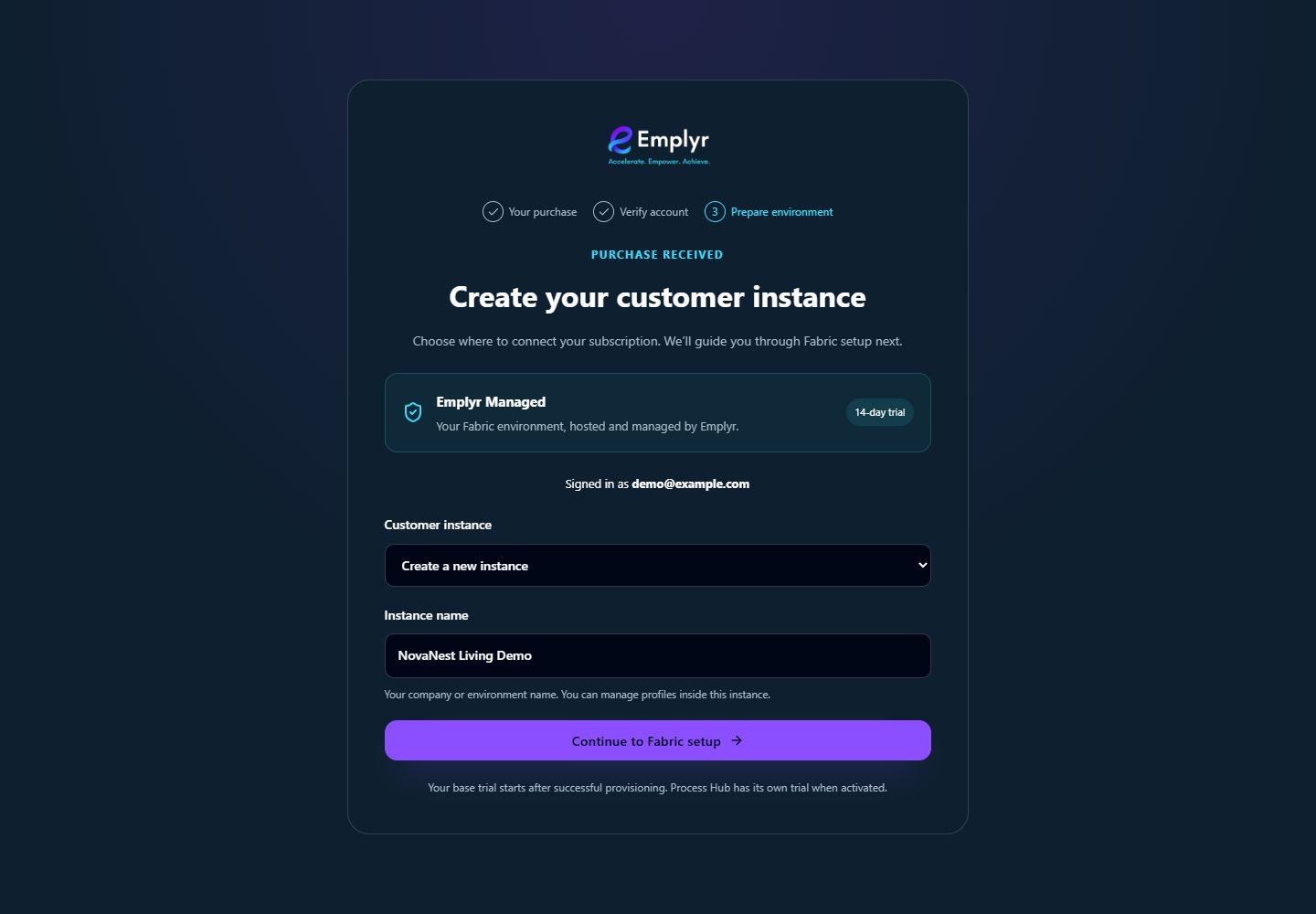
Check Emplyr Managed and the customer instance name before continuing. This starts the Managed environment setup flow. - The setup page displays We’re preparing your environment and a read-only progress list. Emplyr prepares the identity, workspace and Managed monitoring. The page checks progress automatically; you can return to the same instance later.
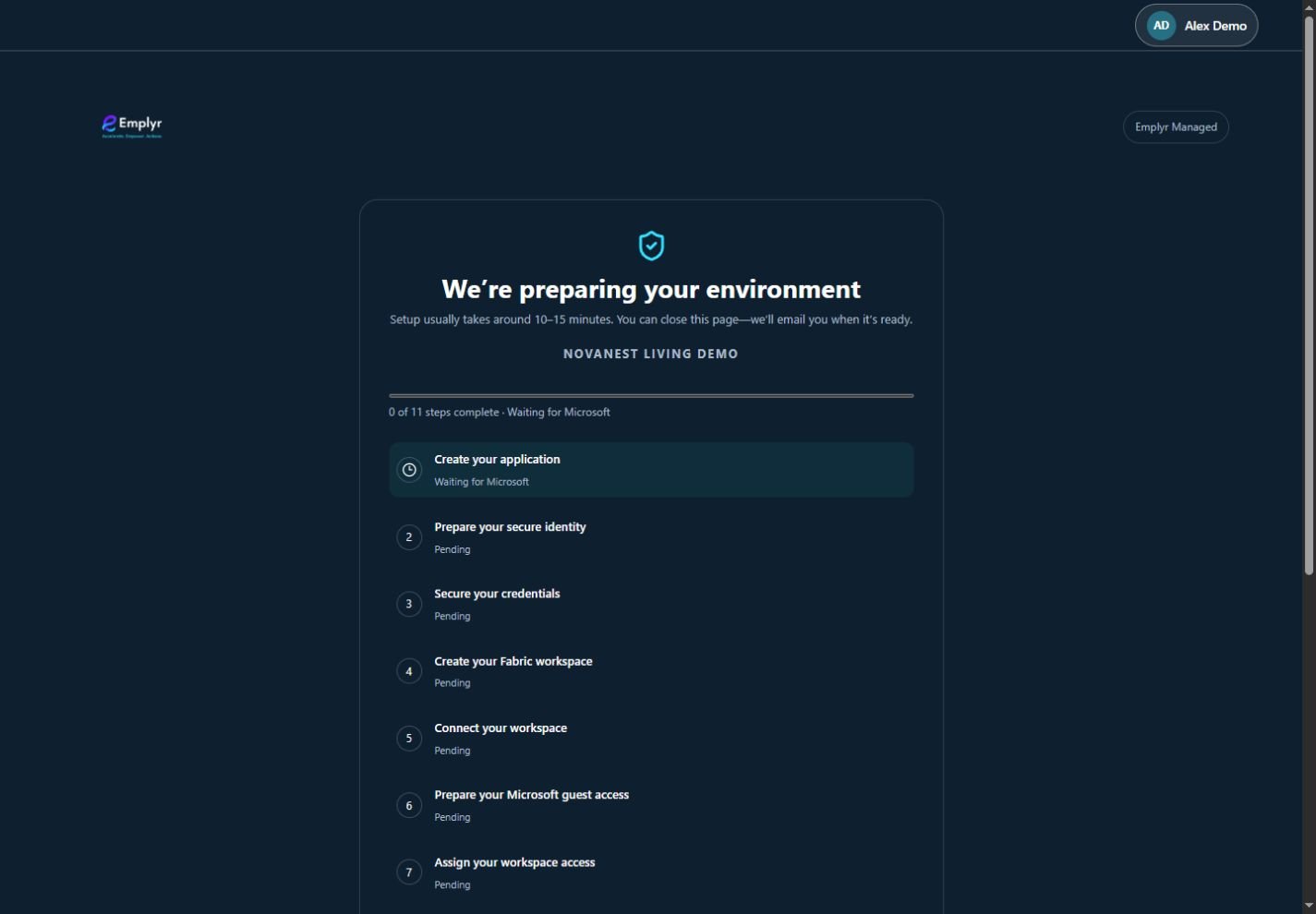
Managed setup shows read-only provisioning progress. Keep the same instance open while its environment is prepared. - If Microsoft approval or operator review is needed, follow the displayed status. If Setup needs our attention appears, give your organisation’s contact the safe instance/error reference for the platform team. Avoid duplicate purchases or instances.
- Wait for Your environment is ready and the instance status Ready. Open Emplyr becomes available when provisioning and readiness complete. The page may open Emplyr automatically; an email also advises when the environment is ready.
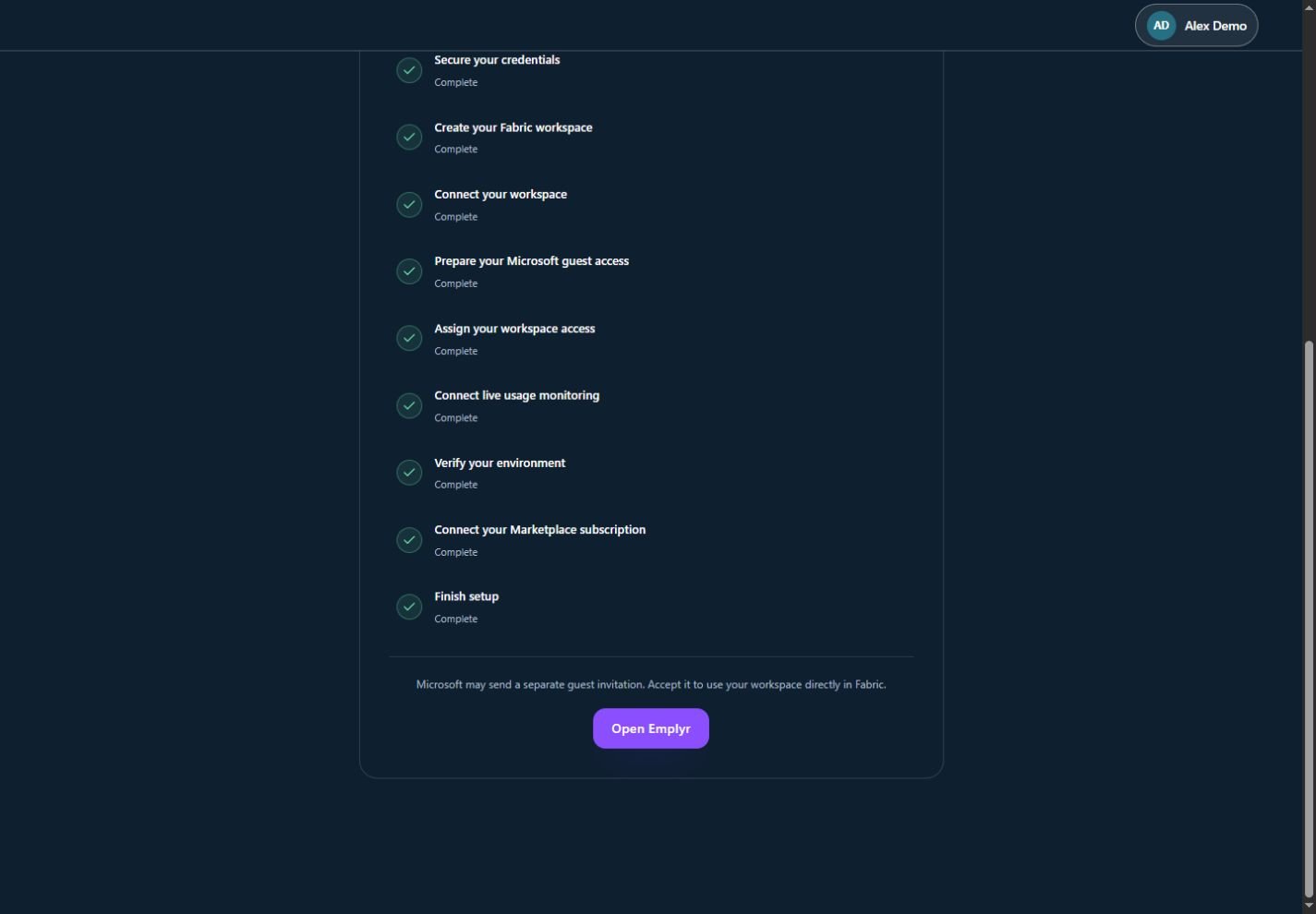
When all Managed setup checks complete, choose Open Emplyr. A separate Microsoft guest invitation is needed only for direct Fabric access. - If you receive a separate Microsoft tenant/workspace invitation, accept it with the intended Microsoft identity when you need direct Fabric access. That invitation is separate from Emplyr membership.
- Open Admin / Global → Subscription & modules. Confirm Emplyr Managed and base-access/trial dates, which start at successful provisioning. Review Activity for provider activation, which completes separately after readiness and base access.
- Create the first profile bound to its approved Managed workspace, enable modules and assign roles. Activate Process Hub separately if needed, grant process access and invite a test member. Check the first-session path.
Completion checks
- Provisioning reports completion for the same named instance.
- The environment reports ready and Open Emplyr is available after readiness completes.
- Subscription & modules shows the intended Managed subscription and base-access dates; unresolved activation/Activity issues are investigated.
- A test member can open the intended profile and permitted task/report.
What you should see
The Managed instance has completed provisioning and readiness checks, its subscription dates are visible, and the administrator can prepare the first usable profile.
If something goes wrong
The page asks for Tenant ID, Client ID and Client Secret
Confirm you connected a Managed purchase to the intended instance. A BYOF setup screen is not a cue to invent Managed credentials.
Provisioning never completes
The platform team must check its configured regional capacity, provisioning identity and worker. Keep the status/reference and avoid creating duplicate purchases or instances.
Managed monitoring is not ready
The platform team owns the shared event destination and collector. Ask your organisation’s existing contact to coordinate the missing delivery; this progress page does not require BYOF credentials.
Provisioning is complete but Open Emplyr is unavailable
The instance must also be Ready. Keep the displayed status/reference for the platform team; successful resource creation, live readiness and Microsoft purchase activation are distinct results.