 Emplyr
Sign up & instance setup · Choose, purchase and set up
How to purchase Emplyr through Azure Marketplace
Find the approved offer, complete the Microsoft purchase and continue into Emplyr account and instance setup.
On this page
Before you start
- Have an Azure account with an eligible billing subscription and purchasing permission. For public offers, Microsoft lists subscription Owner or Contributor; approved custom roles may also apply. Your organisation’s Marketplace policy/private catalogue must allow the offer.
- Agree Managed or BYOF and obtain the approved Emplyr offer link if it is not discoverable. BYOF also needs the Fabric preparation guide. For a private offer, arrange acceptance with the authorised billing owner before purchase; acceptance and purchase are separate steps.
If you do not have an Azure purchasing subscription
Ask your organisation’s billing owner to arrange the appropriate Azure account/subscription and purchasing access first. Microsoft’s subscription-creation route depends on its billing agreement. For an organisation using a Microsoft Customer Agreement, the reference below explains the required billing roles and creation steps.
Three names you will see
On smaller screens, scroll the table sideways to see all columns.
| Item | What it means |
|---|---|
| Azure subscription | The Microsoft billing/resource scope used for purchase. |
| SaaS subscription name | The purchased Emplyr resource displayed by Microsoft. |
| Emplyr instance name | The customer environment created/selected inside Emplyr. These names are not automatically interchangeable. |
Microsoft references
Microsoft can change checkout labels, availability and purchasing policies. The links below are the provider reference for the Azure portion.
Follow these steps
Screenshots use fictional training data. Names, dates and amounts are examples. Select an image to view it at full size.
- Open the Azure portal, choose Marketplace and search for Emplyr, or open your approved offer link. Check the publisher and hosting option; do not select a similarly named product.
- Select the intended plan and start its purchase with Get it now or Subscribe. Check the Azure billing subscription, SaaS resource name, billing term, price and any trial/renewal settings shown.
- Review resource-group/location details, contact information and terms. Use the purchase summary for current charges and eligibility; a resource-group location is not an Emplyr hosting-model selection.
- When authorised, complete Microsoft’s purchase. Open its SaaS resource; if the window was closed, search for SaaS in the Azure portal, select SaaS under Services and open the purchased Emplyr subscription by name. Choose Configure Account (or Configure account now) to continue to Emplyr in the same browser.
- In Set up Emplyr check the hosting label: Emplyr Managed or Bring your own Fabric. Choose Sign in with Microsoft using the purchase’s purchaser or beneficiary identity.
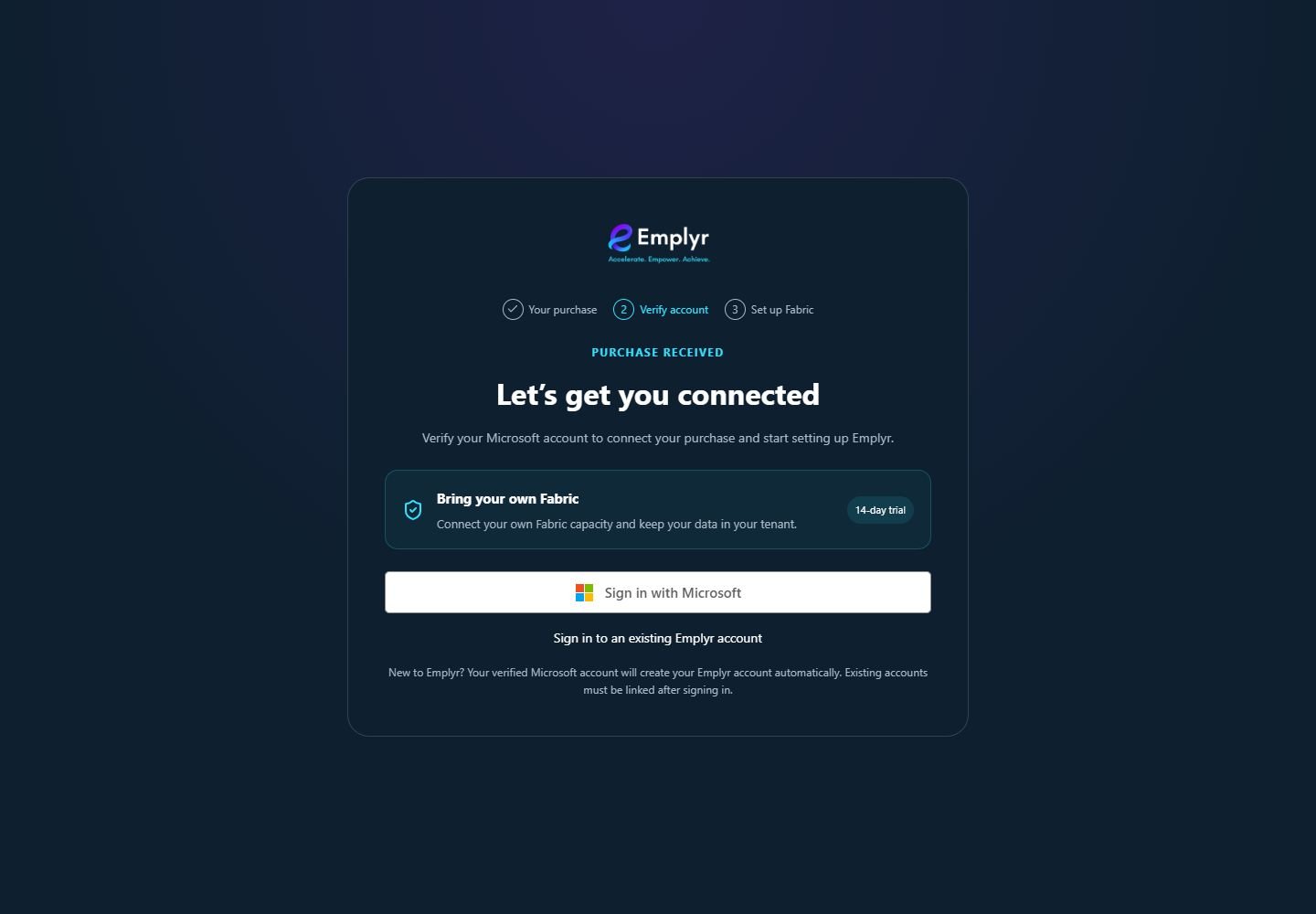
After Configure Account returns you to Emplyr, check Bring your own Fabric and verify the intended Microsoft purchaser or beneficiary identity. - If the email already belongs to an Emplyr account, use Sign in to an existing Emplyr account, then Link Microsoft account and verify the purchaser/beneficiary identity. A matching email alone does not verify ownership.
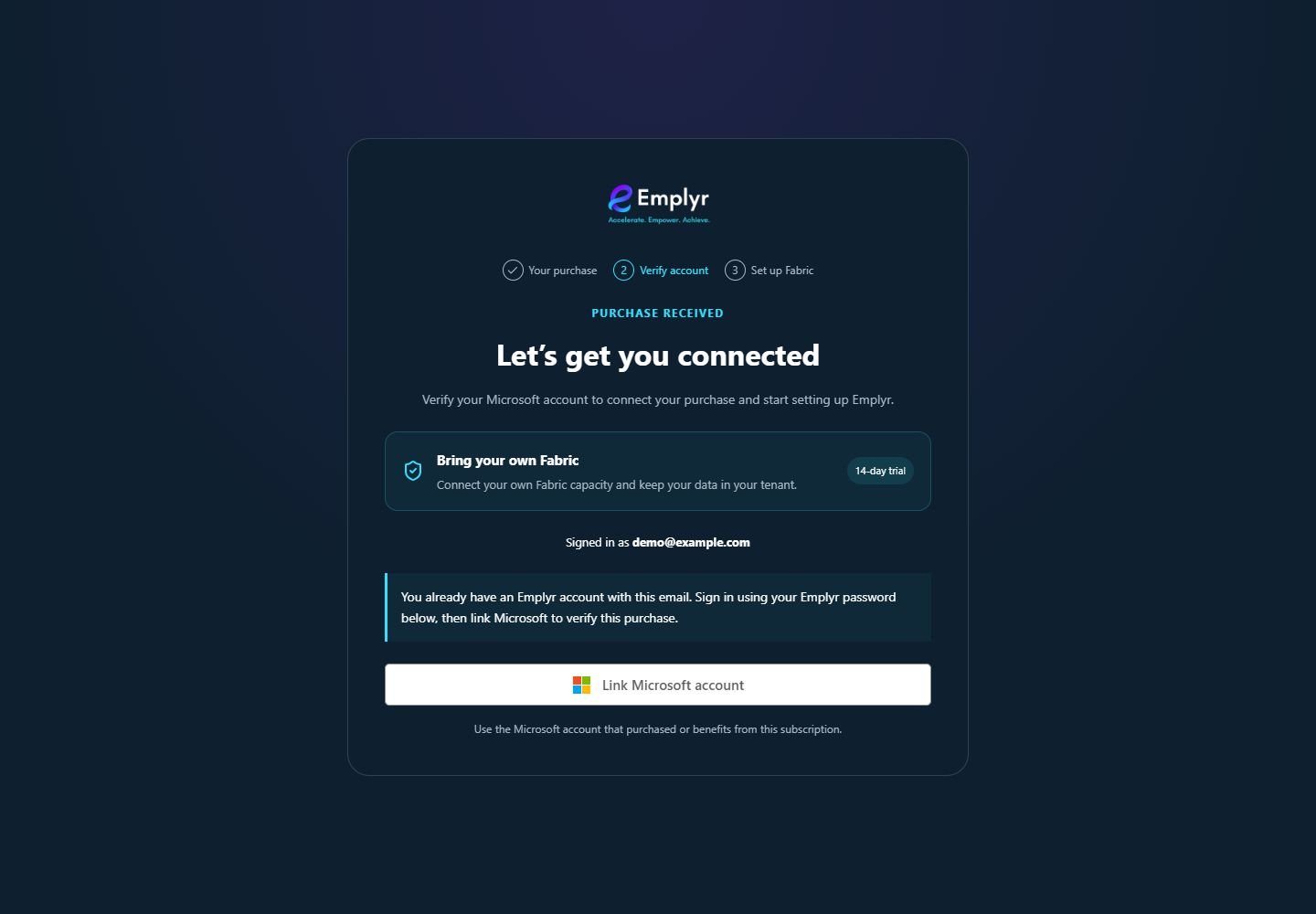
If you already have an Emplyr account, sign in to that account and complete its Microsoft account linking step. - Once verified, choose Customer instance → Create a new instance and enter its name, or select an existing instance you actively administer. Check the customer name and choose Continue to Fabric setup.
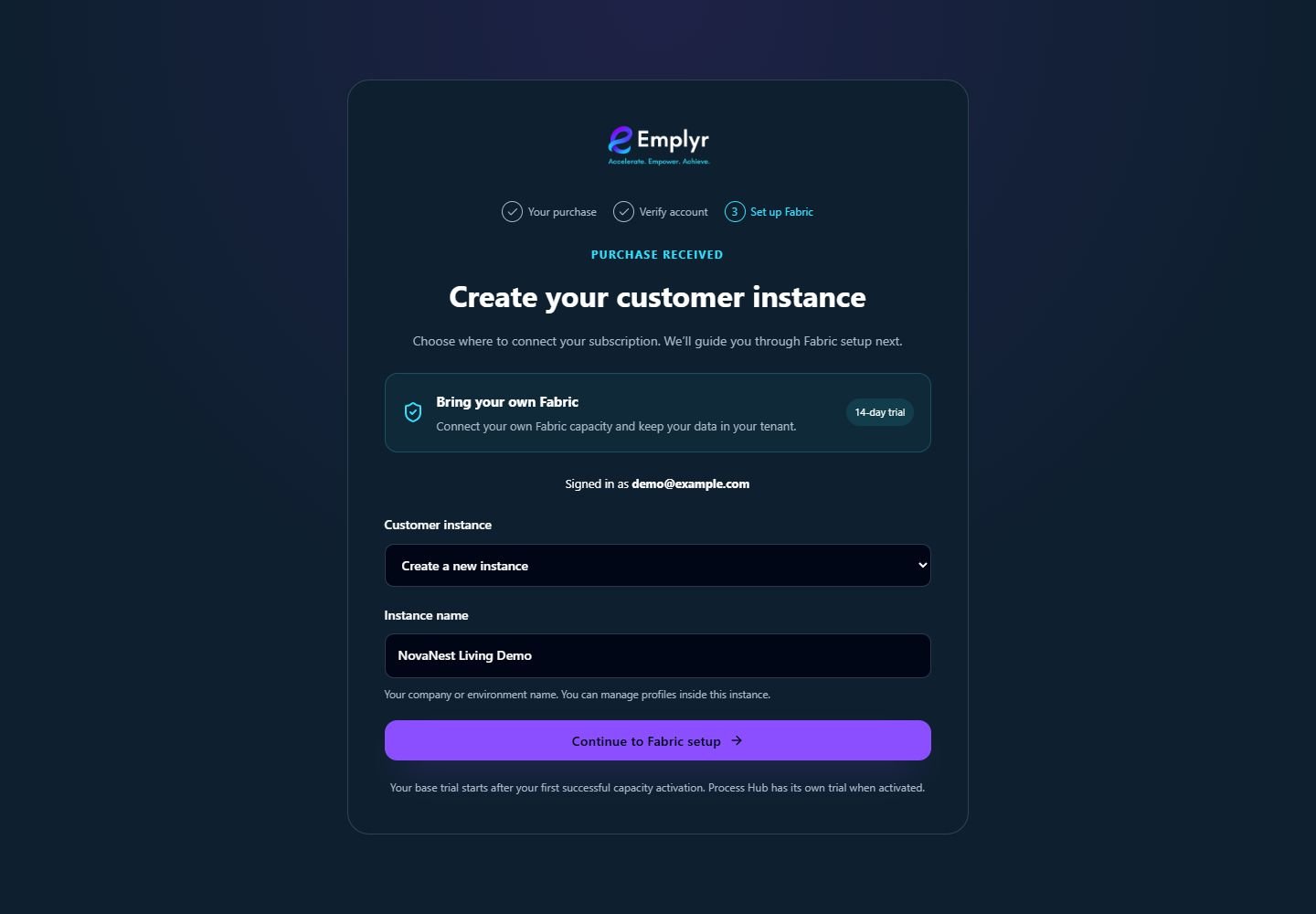
Check the BYOF hosting label and the signed-in identity before creating the named customer instance. - Continue with the matching Managed or BYOF guide. After its provisioning/readiness and base-access checks, verify the subscription’s activation/status. A completed purchase or connected account alone does not finish Emplyr setup.
Continue with your hosting option
What you should see
The Microsoft purchase is connected to the intended Emplyr account and customer instance, ready for the appropriate hosting setup.
If something goes wrong
Emplyr or the intended plan is not listed
Check the offer link, region/tenant eligibility and private Marketplace approval with your purchasing administrator. Ask for the approved Emplyr offer link if the listing is private or unavailable in search.
No eligible Azure subscription or purchase permission
Have the billing/subscription administrator check access, payment eligibility and Marketplace policy. A free Fabric trial does not supply an eligible Azure purchasing subscription.
Configure Account shows no purchase
Reopen the purchased SaaS resource in Azure and choose Configure Account again. Do not copy or share its token-bearing URL.
The wrong customer was selected
Stop before Continue setup and choose the correct instance. If already associated, have the commercial administrator review it; buying again is not a repair.