 Emplyr
Instance administration · Subscriptions, billing and capacity
How to connect a Microsoft Marketplace purchase
Associate a purchase with the correct Emplyr account and instance.
On this page
Before you start
- Have an approved Emplyr purchase and the Microsoft account that purchased or benefits from it. To associate an existing instance, you need an active Admin membership in that instance.
Starting before you have an instance?
Use the full signup guides for the Azure purchase steps and hosting-specific setup. This shorter guide is for connecting or resuming an already purchased subscription.
Follow these steps
Screenshots use fictional training data. Names, dates and amounts are examples. Select an image to view it at full size.
- In the Azure portal search for SaaS, select SaaS under Services and open the purchased Emplyr subscription by name. Choose Configure Account to reach Emplyr’s setup flow.
- Select Sign in with Microsoft and use the purchaser/beneficiary identity for the purchase.
- If the flow identifies an existing Emplyr account, verify it through its own sign-in before linking the Microsoft identity. A matching email alone is not ownership proof.
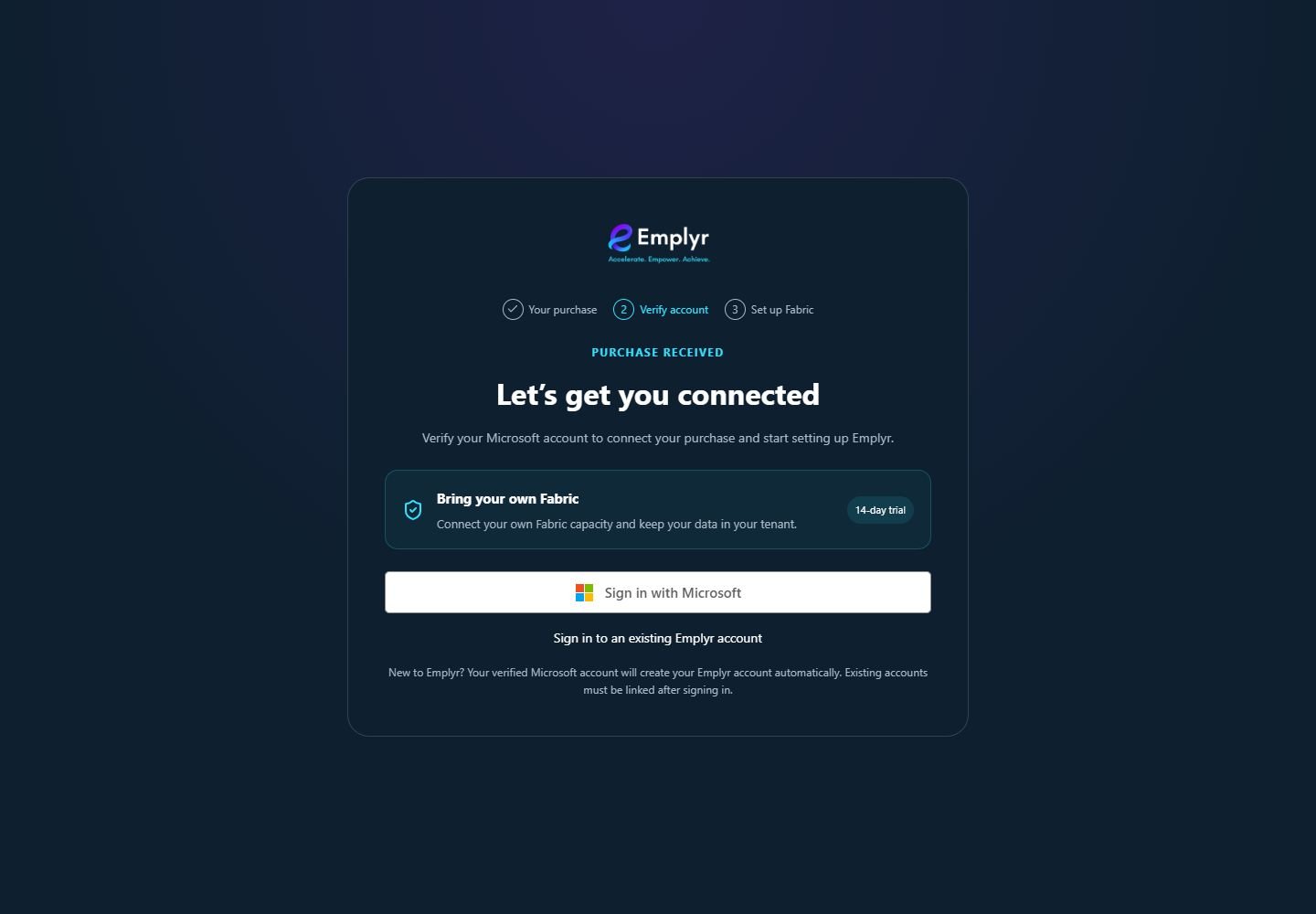
After Configure Account returns you to Emplyr, check Bring your own Fabric and verify the intended Microsoft purchaser or beneficiary identity. - At Customer instance, select the authorised existing instance or Create a new instance and supply its name. Recheck the selected customer before proceeding.
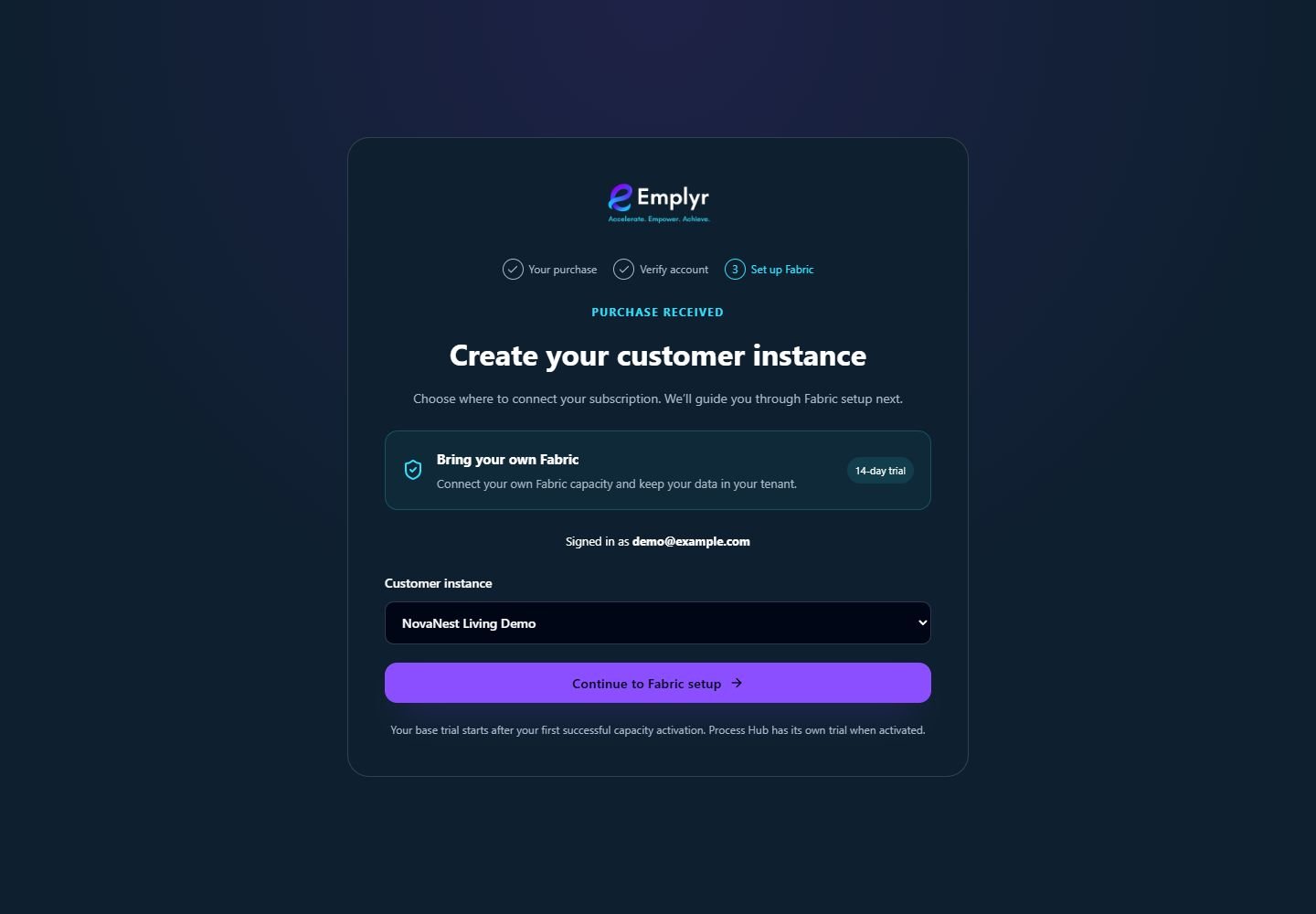
Only associate the purchase with the intended existing instance that you administer. Check the name before continuing. - Select Continue setup. Complete the required Fabric/capacity or Managed provisioning steps and readiness checks.
- Open the resulting instance’s Subscription & modules screen to verify association, component status and trial/service dates. Ask the instance administrator to investigate a pending activation rather than buying again.
What you should see
The purchase is associated with the intended instance and can advance through its remaining setup/activation checks.
If something goes wrong
No purchase token/setup context is found
Return to the purchased subscription in Microsoft and use Configure Account again. Do not paste a token into a help request.
The intended existing instance is not offered
Sign in with the account that has its Admin membership and verify the purchase identity.
The status remains pending
Setup/provisioning and provider activation may still be required. Keep the visible reference and ask the commercial administrator to review status.