 Emplyr
Sign up & instance setup · BYOF: identity, access and monitoring
Prepare your Microsoft Fabric environment for BYOF
Follow the detailed setup guides in order, from application identity and permissions to working live capacity monitoring.
On this page
Before you start
- Use an authorised Microsoft Entra/Fabric administrator and the organisation’s approved purchasing/credential procedures. Agree the Fabric tenant with the Marketplace purchaser/beneficiary first.
- Prepare an eligible Fabric capacity and workspace. The people configuring capacity event sources need the provider’s required capacity-admin and workspace permissions; Emplyr Admin membership alone does not grant Microsoft permissions.
Detailed guides in setup order
Who performs each part?
On smaller screens, scroll the table sideways to see all columns.
| Owner | Responsibility |
|---|---|
| Authorised purchaser | Azure Marketplace purchase, beneficiary identity and correct instance association. |
| Entra/Fabric administrator | App registration, scoped rights, capacity permissions and app workspace access. |
| Human capacity admin + workspace Contributor or higher | Create/publish the capacity operation and overview sources. |
| Deployment administrator | Run and maintain persistent collection; investigate missing delivery. |
| Emplyr instance administrator | Test connection, activate intended capacities, verify live events and configure profiles. |
Follow these steps
Screenshots use fictional training data. Names, dates and amounts are examples. Select an image to view it at full size.
- Agree the Fabric tenant, capacity, region, content workspace and credential/monitoring owners with the Marketplace purchaser and Microsoft administrators. The Fabric tenant must match the purchase beneficiary (or purchaser tenant when no beneficiary is supplied).
- Follow Create the BYOF app registration and service principal. Create the tenant-local application and securely record tenant ID, client ID and secret Value/expiry.
- Follow Grant the BYOF service principal its permissions. Add it to the scoped security group, enable the needed Fabric settings and grant capacity contributor/Admin. Add Graph rights only for the directory features you will use.
- Follow Assign the service principal to a Fabric workspace. Choose Member for content/report access or Admin for workspace-user management. Confirm the actual workspace ID and capacity placement.
- Complete the BYOF Marketplace/account/instance association. In Connect Fabric enter the prepared values and choose Verify & continue. In Connect live usage activate at least one approved eligible capacity; the first successful activation starts base access/trial.
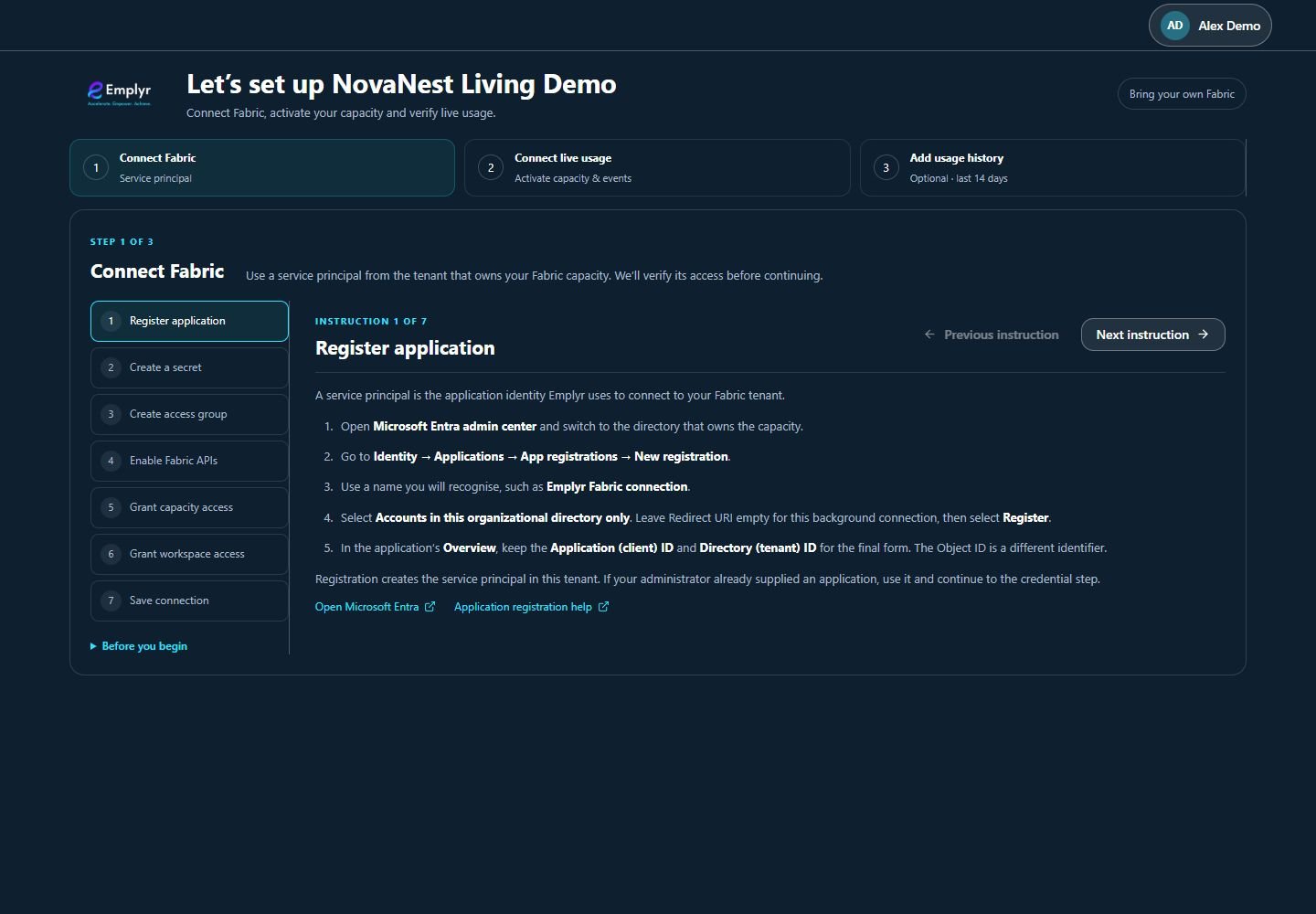
Work through Connect Fabric in order, using the detailed Microsoft preparation guides alongside these instructions. - Follow Set up live Fabric capacity monitoring with Eventstream for each intended capacity. A human capacity admin configures both sources and publishes the destination; the deployment administrator runs the collector.
- Confirm both event types are received and select Verify events & continue. Saving credentials or selecting Finish setup without received events does not complete this check.
- Optionally install Fabric Capacity Metrics and prepare compatible model access, then use Add usage history → Import last 14 days once. Otherwise select Skip history & go to Emplyr.

History import is optional. Enter the Metrics workspace ID or allow discovery, or choose Skip history & go to Emplyr. - Record access/credential/collection ownership. Configure the first profile, modules and roles, then test a normal member’s report or process access before inviting the wider team.
What you should see
The Microsoft administrators and Emplyr administrator have compatible tenant identities, permissions and event setup, with clear ownership for ongoing access and credential rotation.
If something goes wrong
The capacity is visible to me but not Emplyr
The app’s service principal needs its own permissions. Your browser user’s access is not inherited by the application.
The client secret cannot be recovered
Microsoft only shows its Value at creation. Have the credential owner create a replacement, save/test it in Emplyr and follow the approved retirement process.
Someone suggests granting Azure subscription Owner to the app
Current Fabric/Graph access uses its own permissions. Do not confuse the purchaser’s Azure role with the app’s Fabric workspace/capacity rights.