 Emplyr
Profiles, people & access · Members, workers and directory groups
How to manage instance admins and directory groups
Maintain Admin memberships and reusable Microsoft tenant security groups.
On this page
Before you start
- Use Admin / Global in the intended instance. Directory actions need a working Fabric/Graph connection and approved Microsoft permissions.
Follow these steps
Screenshots use fictional training data. Names, dates and amounts are examples. Select an image to view it at full size.
- Open Users. The Admin directory lists instance administrators; ordinary profile members are managed from their profile’s Users page.
- To add an administrator, select Add admin and enter Name, Surname and Email. Save the addition. Existing accounts keep their password; new email accounts receive a setup link.
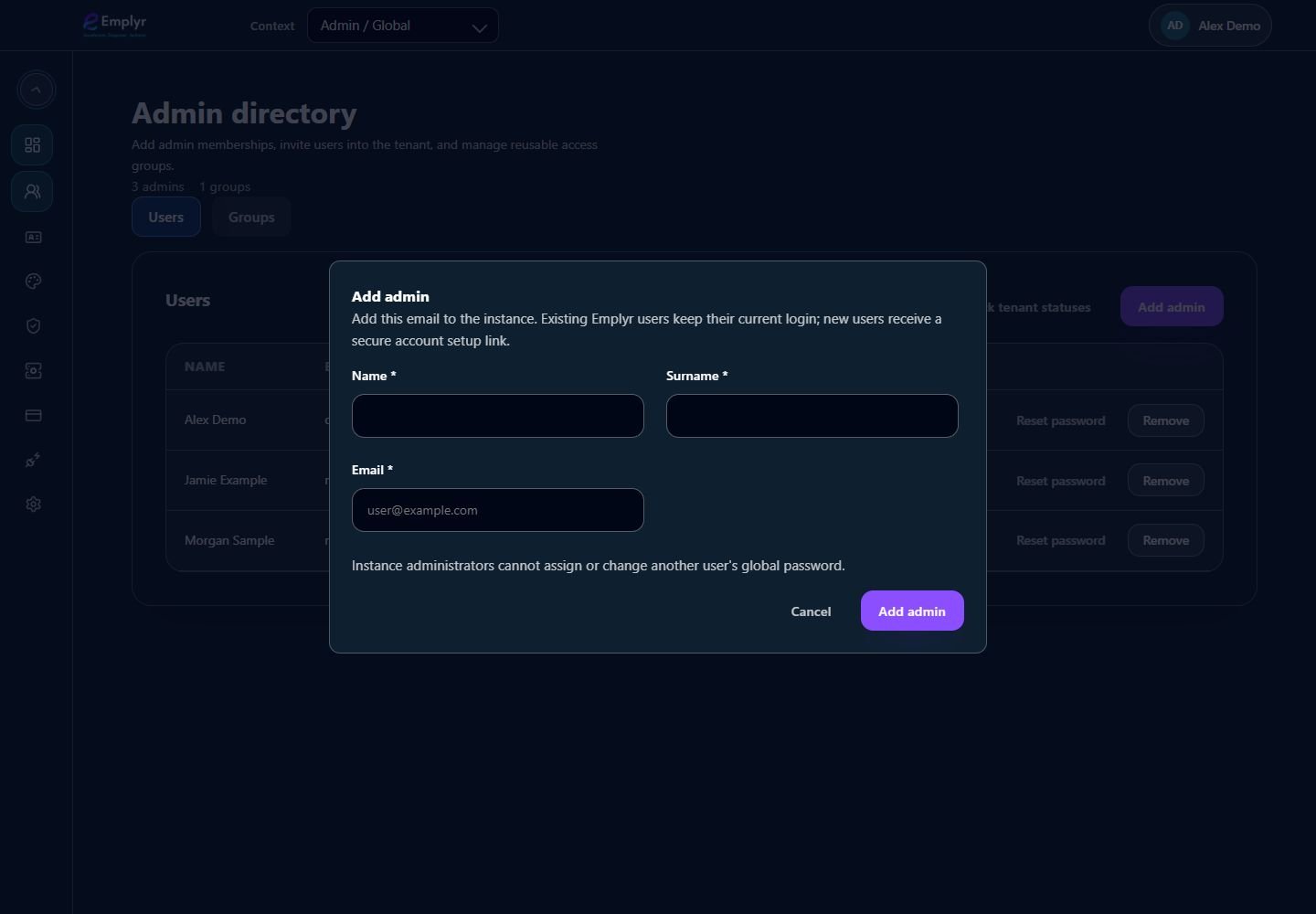
Add instance administrators through the Admin directory. Profile members receive their profile roles separately. - Use Check tenant statuses when you need to refresh directory membership. Invite or activate the intended admin using the available tenant-status action.
- In Groups, select Create group. Enter Group name and Description, or provide an approved Existing group object ID. Select the tenant-linked administrators who should be members, then Create group.
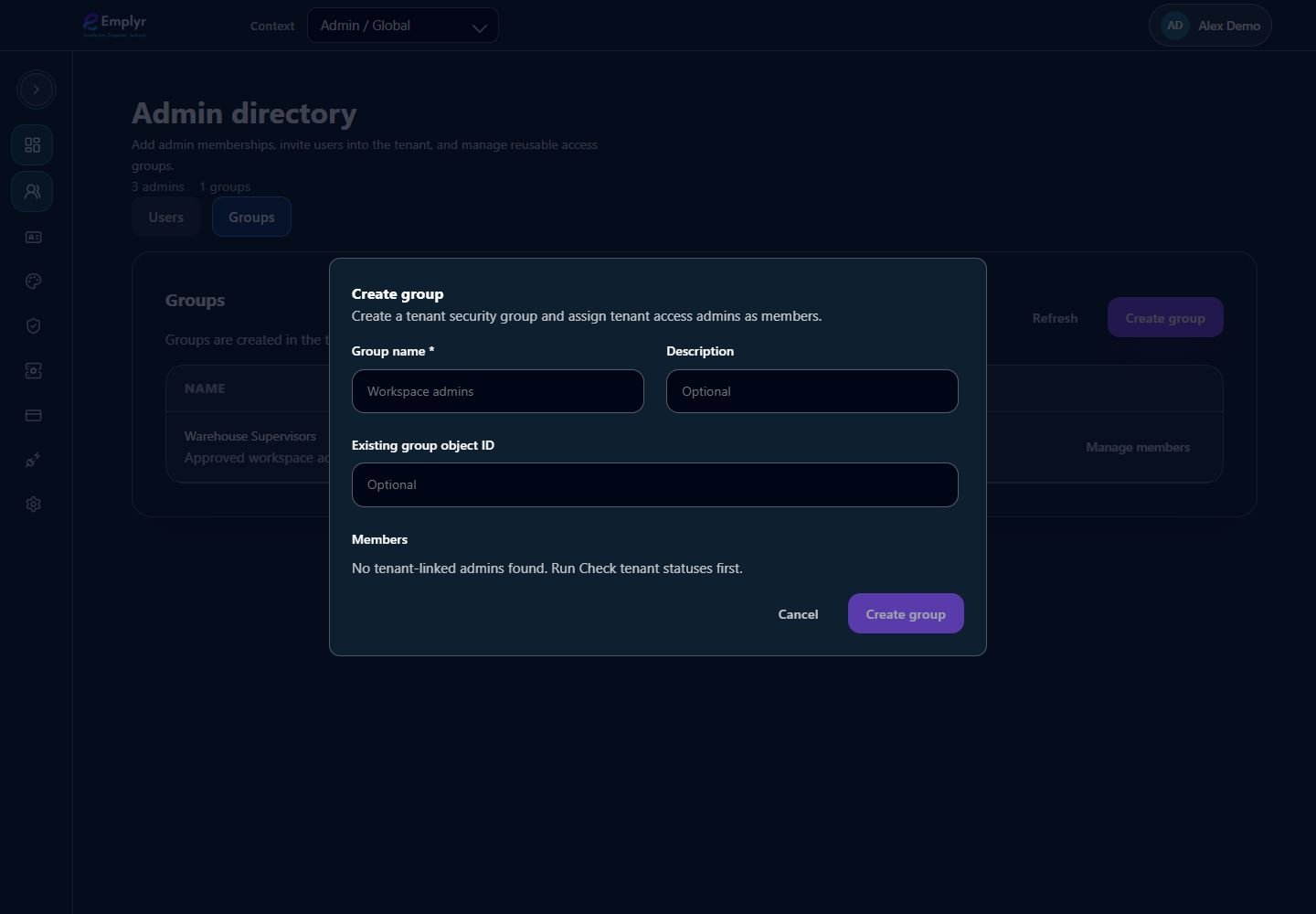
Use the directory group controls for tenant-linked groups. Confirm the tenant status and intended members. - For an existing group, use Manage members, review the selected people, and Save members. These changes update the tenant directory as well as Emplyr’s saved group information.
- Use Admin → Fabric workspace access when assigning these approved admins/groups to a workspace. Review any Remove action carefully: at least one instance admin must remain.
What you should see
Admin memberships and managed groups are ready for the permitted directory/workspace actions. Profile members still receive their profile roles separately.
If something goes wrong
No tenant-linked admins are available
Run Check tenant statuses, then complete tenant invitations for the intended admins.
Group creation or invite fails
Have the Microsoft tenant administrator verify the service principal’s Graph permissions and admin consent. Keep the request reference; do not share client secrets.