 Emplyr
Fabric & integrations · Fabric connection and workspace access
How to connect Emplyr to Microsoft Fabric
Save the instance connection and complete its readiness checks.
On this page
Before you start
- Have the correct Microsoft Fabric tenant ID, application/client ID and client secret value, prepared by your Microsoft administrator. The application needs the approved tenant settings, workspace/capacity access and any Graph permissions needed for directory management. Managed instances should use the provisioning process agreed with Emplyr.
Prepare each Microsoft dependency
Follow these steps
Screenshots use fictional training data. Names, dates and amounts are examples. Select an image to view it at full size.
- Select the intended instance. For new BYOF setup choose Instances → Continue setup → Connect Fabric. For an existing connection use Admin / Global → Fabric. Managed customers follow their environment-progress page.
- In BYOF Connect Fabric enter Directory (tenant) ID, Application (client) ID and Client secret value, then Verify & continue. In existing Admin → Fabric the labels are Fabric Tenant ID, Service Principal (Client) ID and Service Principal Secret, with Save & Test. Always use the secret Value.
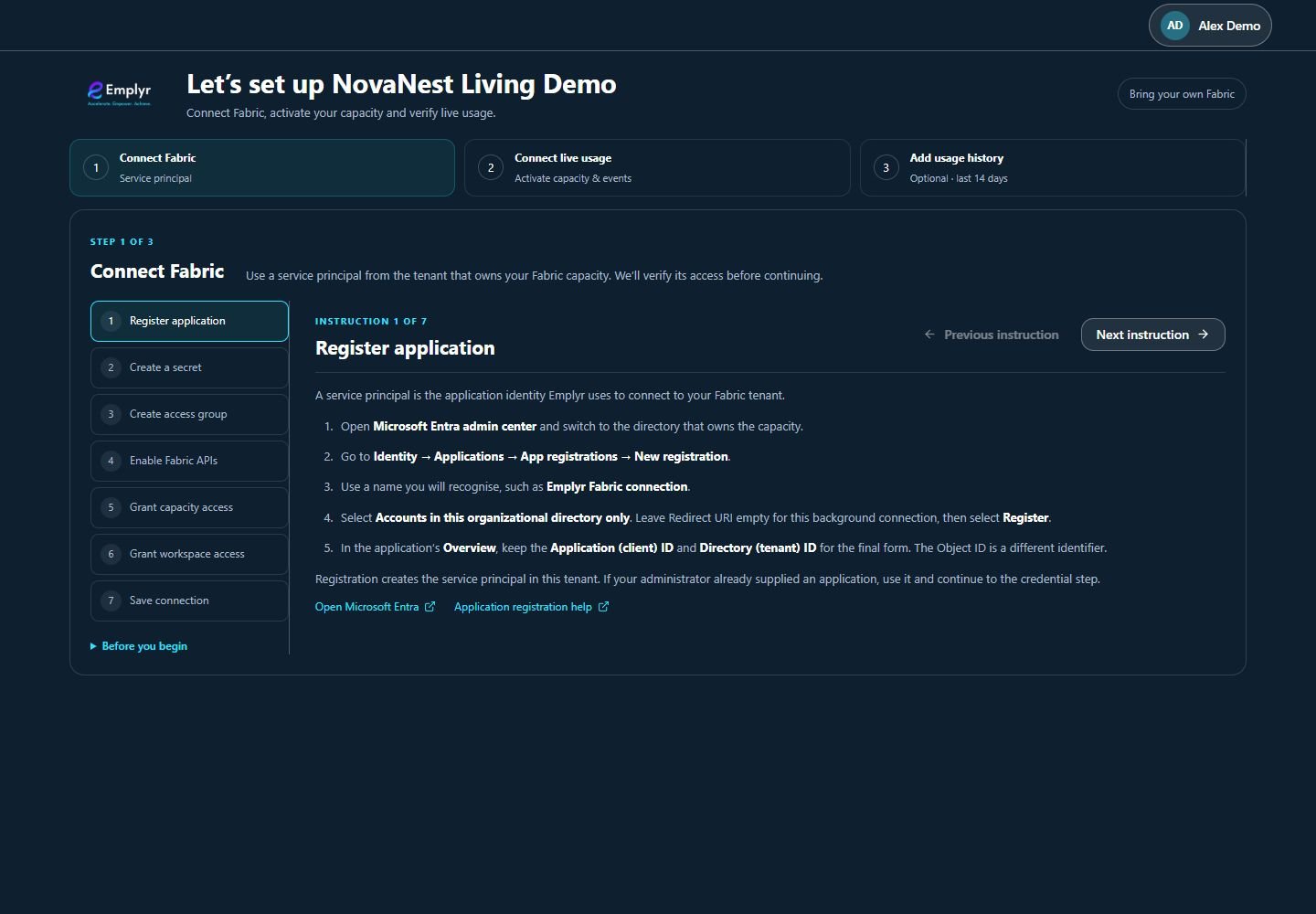
Work through Connect Fabric in order, using the detailed Microsoft preparation guides alongside these instructions. - Confirm validation succeeds. Refresh capacity/workspace inventory and match the expected IDs. Correct missing app permissions with the Microsoft administrator; your personal Fabric access is separate.
- In new BYOF Connect live usage activate the intended eligible capacity, choose Set up stream/Manage stream and follow the Eventstream guide. Confirm the collector receives both event types, then Verify events & continue.
- Add usage history is optional after live verification. Use the separate Capacity Metrics app guide for a compatible model and one-time Import last 14 days, or Skip history & go to Emplyr.
- Configure the first profile’s workspace binding, modules and roles, and test as a member. For an existing instance after credential rotation, recheck its inventory and required actions before retiring the previous secret.
What you should see
The instance has a tested Fabric connection and can proceed through the readiness checks supported by its configuration.
If something goes wrong
The secret was saved but discovery fails
Have the Microsoft admin check the service principal’s tenant settings and explicit capacity/workspace access. A saved secret does not prove provider permissions.
You are rotating a secret
Save the new value and verify the connection before retiring the old credential in Microsoft. Never include client secrets in help requests.
The instance is not ready
Follow the remaining setup checks. A successful connection alone may not satisfy telemetry readiness.