 Emplyr
Instance administration · Branding, domains and partner sign-in
How to update and publish profile branding
Use the instance baseline or publish a profile-specific override.
On this page
Before you start
- Select the intended profile. Whitelabeling must be enabled; you need its edit permission as well as access to the page.
Follow these steps
Screenshots use fictional training data. Names, dates and amounts are examples. Select an image to view it at full size.
- Open Whitelabeling from the profile navigation and confirm the profile name.
- Review Use global branding. Keep inheritance if the profile should follow the instance baseline; choose the intended override settings if it needs a distinct appearance.
- Edit the permitted logo, tab name, colours, typography or other controls. Read Inherited/Overridden indicators to understand which values you are changing.
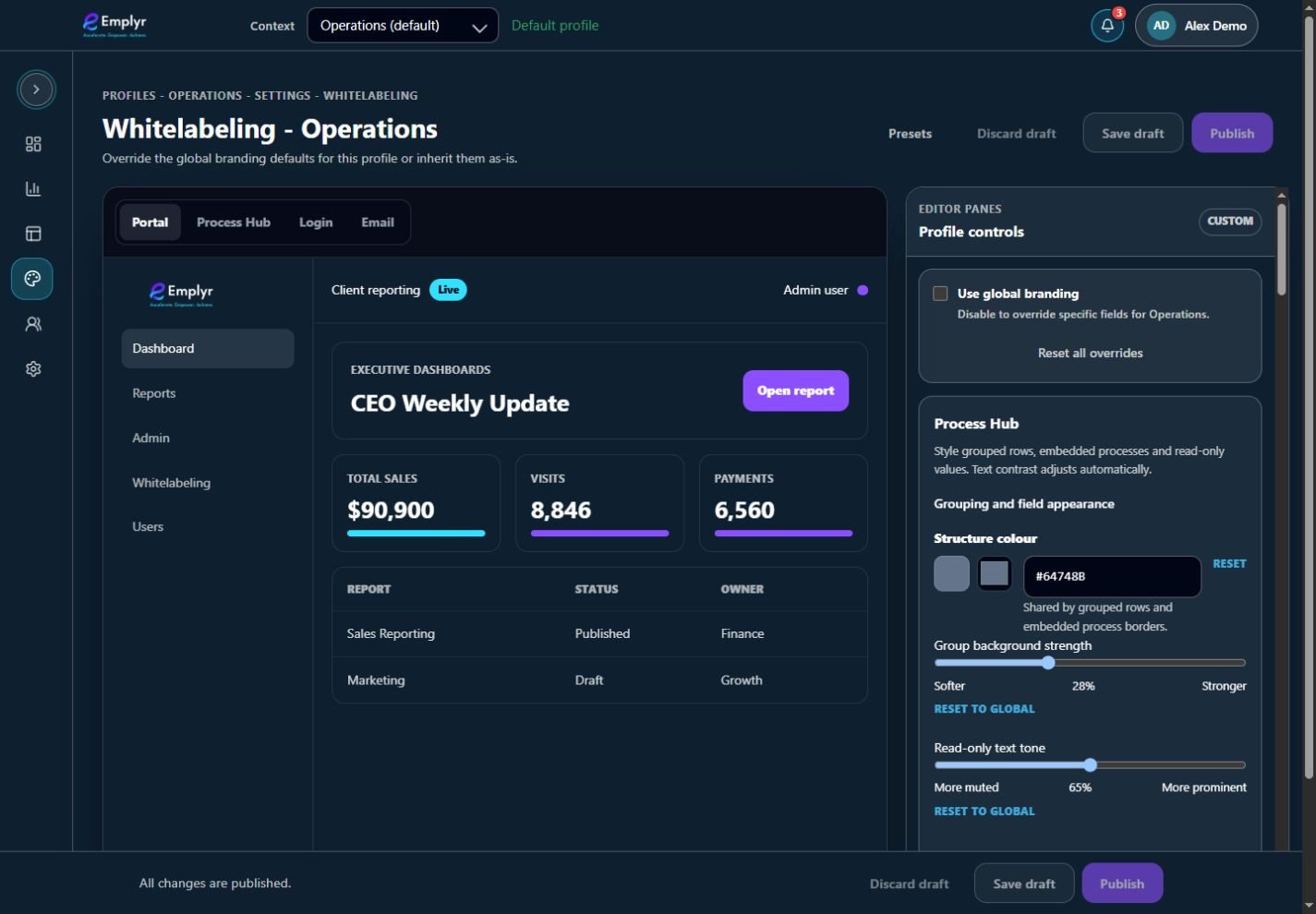
Choose whether this profile inherits global branding or supplies its own overrides. - Use the preview panes to inspect readability and the affected screens. Save draft if you are not ready to make the change live.
- Select Publish when the preview and inheritance choices are correct, then reopen a page in this profile to check the result.
What you should see
The profile uses its published override or the selected global inheritance behaviour. Other profiles are configured separately.
If something goes wrong
Whitelabeling is unavailable
Check the profile’s Whitelabeling module and your view/edit permissions.
A global change does not appear
Review this profile’s overrides and published state.
The domain/login branding differs
Domains are instance-level. Coordinate customer-domain/login settings with an instance administrator.