 Emplyr
Instance administration · Branding, domains and partner sign-in
How branding drafts, previews, publish, discard and reset work
Choose the action that matches whether you want to keep, preview or publish a change.
On this page
Before you start
- Open the correct instance/profile branding editor and check the current published appearance.
Follow these steps
Screenshots use fictional training data. Names, dates and amounts are examples. Select an image to view it at full size.
- Make a small change and inspect it in the preview. The preview lets you judge the current editor values before publication.
- Select Save draft when you want to keep unfinished editing for later. A saved draft does not make those draft values the published theme.
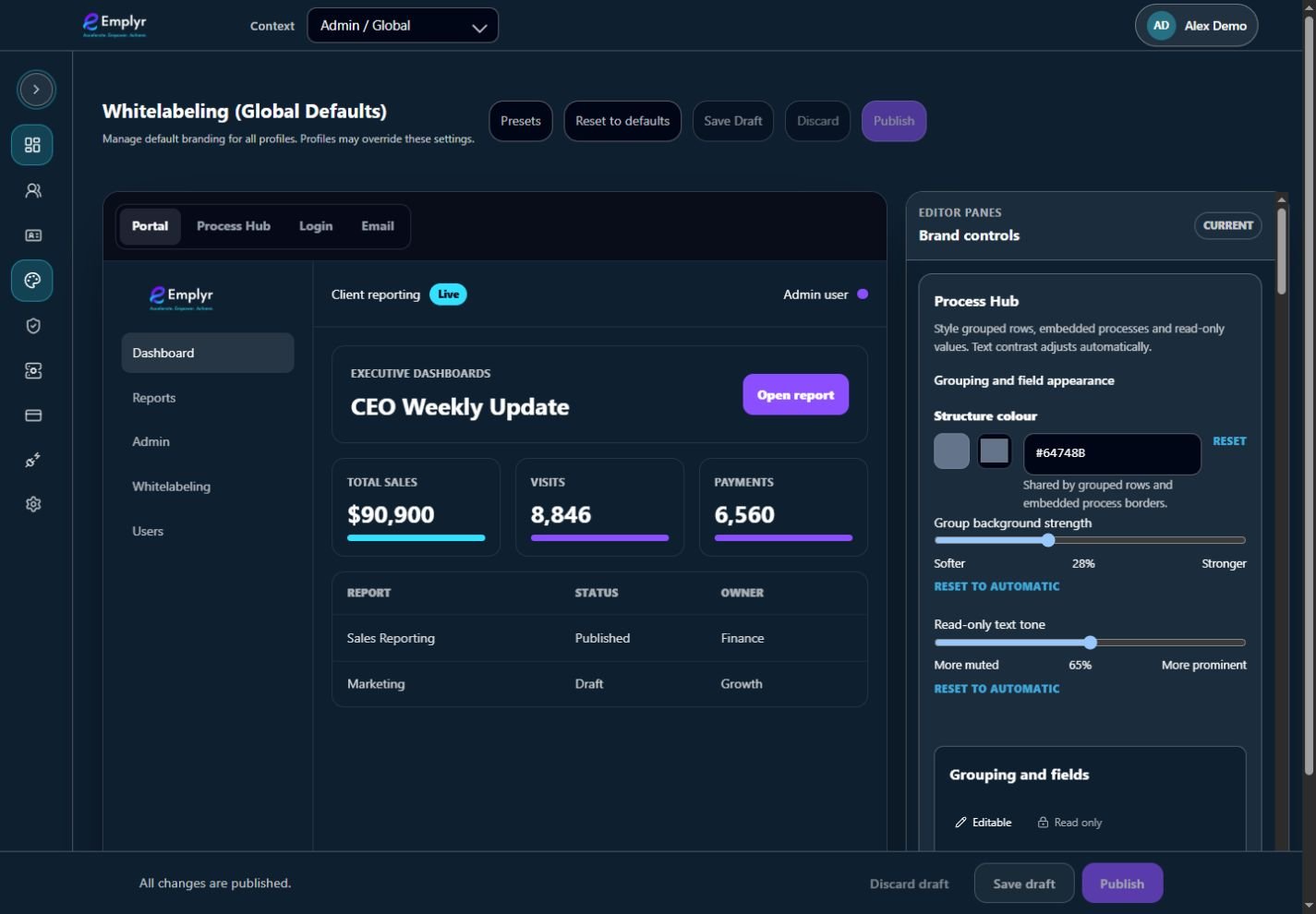
Use the preview tabs to review the global branding draft before saving and publishing. - Select Publish only when the intended values and inheritance options are ready for users. Wait for the success result.
- Select Discard draft when you want to abandon unpublished work and return to the published baseline.
- Use Reset to defaults only when you intend to load the default values into the editor. Review them and publish separately if you want those defaults to become live.
- When using a preset, review its loaded preview before publishing. Loading a preset is not the same as choosing a published version.
What you should see
You can preserve work or revert an unfinished edit without accidentally treating a preview as a released theme.
If something goes wrong
You saved a draft but users see the old theme
Publish is a separate action. Confirm the selected instance/profile and publish when ready.
You discarded work you meant to keep
Unsaved/unpublished edits may need to be re-entered. Review the published theme before editing again.