 Emplyr
Instance administration · Branding, domains and partner sign-in
How to add and verify a custom domain
Verify an instance hostname and bind its HTTPS certificate.
On this page
Before you start
- Have control of the approved hostname’s DNS and an instance Admin membership. The deployment administrator must have configured the app’s Azure domain/certificate automation.
Follow these steps
Screenshots use fictional training data. Names, dates and amounts are examples. Select an image to view it at full size.
- Select Admin / Global → Whitelabeling and open Custom Domain.
- Add the approved Domain and choose the displayed DNS type, CNAME or A record. Use only a hostname your organisation controls.
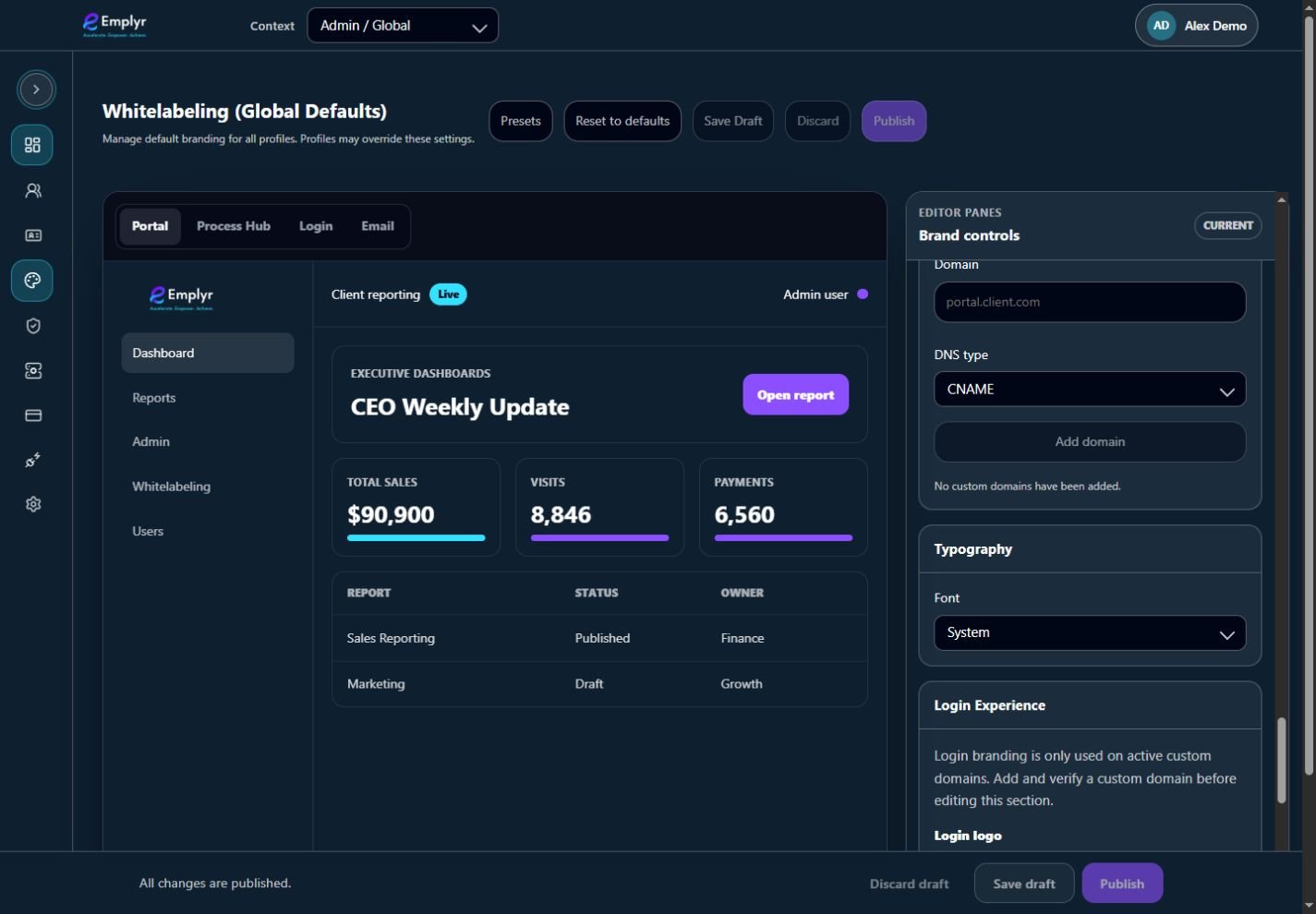
Enter the approved domain and follow the verification instructions returned for it. DNS changes are made with your domain provider. - Give the generated records to the DNS administrator. Use the exact TXT verification name/value plus CNAME target or A-record IP shown by Emplyr; do not substitute example values.
- Wait for DNS propagation, then select Verify & bind TLS. The app checks DNS and attempts the Azure hostname/certificate binding.
- If the status is certificate_pending, allow certificate issuance time and use the verify action again to retry binding.
- Only after the domain is active, open its HTTPS address and check the branded login. Have an authorised member test sign-in; known pending/inactive domains reject login.
- If disabling a domain later, arrange the replacement login URL and DNS changes first. Domain removal does not itself revoke existing sessions.
What you should see
The active hostname resolves securely to the intended instance and can be used for its branded login/setup links.
If something goes wrong
DNS verification fails
Check the complete TXT record name/value, chosen CNAME/A destination and propagation with the DNS owner.
The domain is verified but HTTPS is pending
Review certificate status and retry the binding after issuance; involve the deployment administrator if it remains stuck.
A valid account cannot sign in on this domain
Confirm the domain is active and the account has a membership in that instance.